
Documentation / 1.12.0
Use Toskar on your phone, tablet, TV, or watch
Chat with the AI on your computer from your phone, tablet, TV, or watch, and ask Toskar about text in any app.
The Toskar app for phones, tablets, TVs, and watches uses the models on your computer, with your chats, memory, and knowledge. You connect each device to your computer once, with a code the computer shows.
A phone or tablet can also run a small model on the device itself, and a TV has a demo you can try without a computer.
What you need
- Toskar running on a computer: Toskar Pro, or Toskar Core. See Install and start your first chat.
- The Toskar app from your device's app store.
- The device and the computer on the same network to connect. Away from home, Reach Toskar away from home keeps it working.
Connect a device
- On the computer, open Computers and choose Connect a device. If network access is off, choose Allow and show a code. It turns on at once, with no restart.
- On the device, open Toskar and choose your computer under On this network. If it isn't listed, enter the address the computer shows.
- Type the 6-digit code. It works once, for 10 minutes. The computer shows the device's name when it connects.
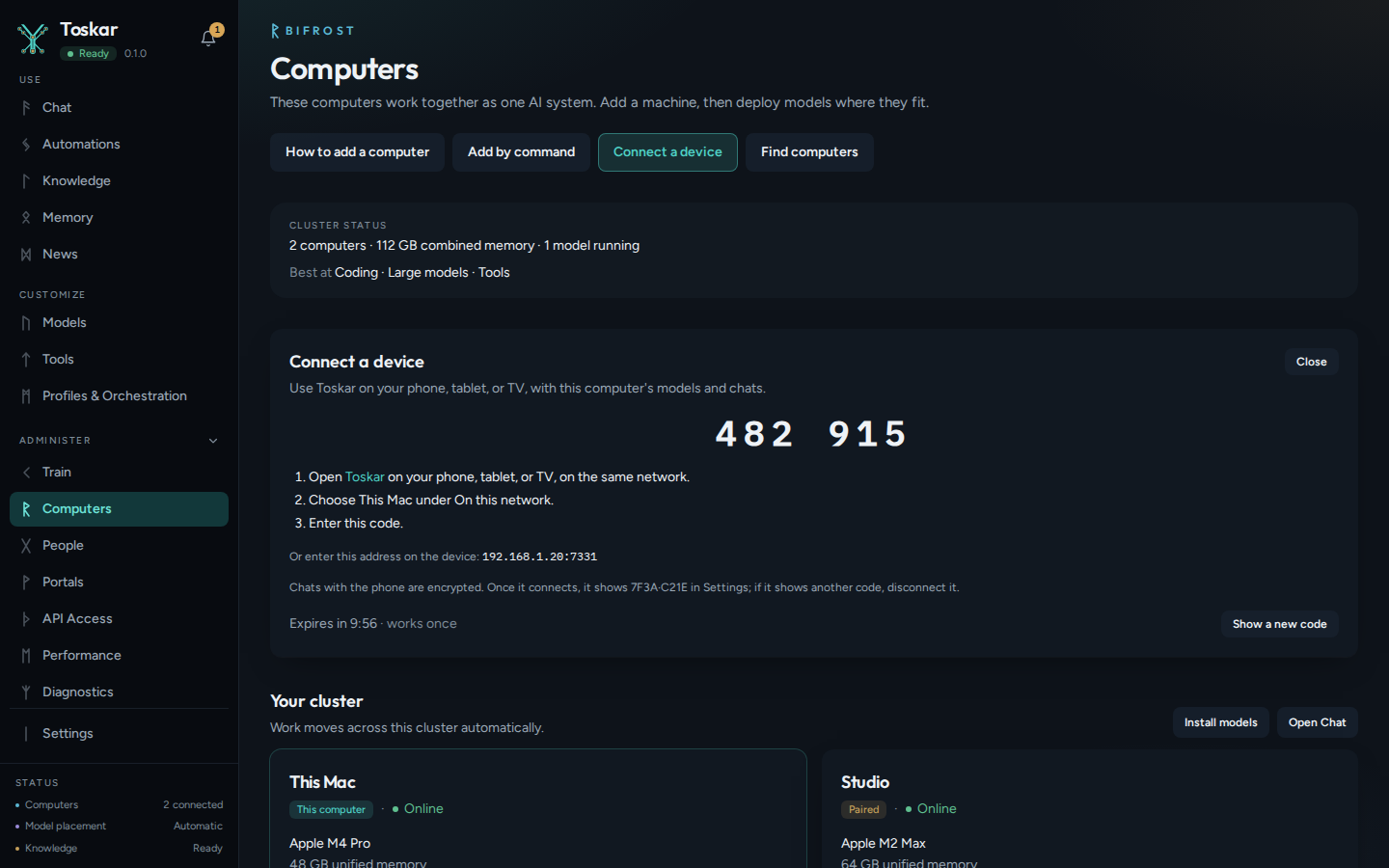
Tip: The connection is encrypted. Once the device connects, it shows a short check code in its Settings. If it doesn't match the one the computer showed, disconnect the device and connect it again.
What a connected device can do
Each device gets a key of its own. That key can chat, see your conversations, and read lists such as models and computers. It can't change settings, models, or keys on the computer.
Disconnect a device any time in Settings, under Your devices. An Admin can also disconnect any device in API Access, under Devices. A disconnected device needs a new code to connect again.
Chat on the device itself
A phone or tablet can also run a small model of its own, for when your computer is off or out of reach. Open Models in the app and choose Install on one under On this device. These are the smaller models from the Toskar catalog, and the file stays on the device.
- To chat on the device, choose a model under On this device in the chat's model menu. Auto there picks the best installed one for each message.
- When the computer can't be reached, the error offers Chat on this device, which sends the same message to the device's model.
- Nothing you write leaves the device. With Look up current information on, in Settings under Chat on this device, a question about the weather or news searches the web: only the search words leave the device, and the answer lists its sources.
- If a model can't load or runs out of memory, a smaller one answers instead, and the answer says so.
Notifications on the device
Turn on Notifications from your computer in the app's Settings, under Notifications on this device. Your computer's notices, such as an automation's result, then arrive even when Toskar is closed or you're away from home. Choose what they say in Settings › Notifications on the computer, and see them all in the app's Activity tab. Notifications covers which notices there are.
Ask Toskar about text in any app
- Select text in another app, then choose Ask Toskar from the share sheet or the text menu. Toskar can fix, rewrite, translate, explain, summarize, or reply to it. From the text menu, Replace puts the answer in place of the text.
- Where the device has them, Fix, Rewrite, Translate, Summarize, and Explain with Toskar are also in Shortcuts, Spotlight, and Siri.
On your TV and watch
- On a TV, ask with the microphone on the remote, or type. Without a computer connected, the TV app's demo answers a few suggested questions with sample answers, and nothing leaves the TV.
- On a watch, ask from the app or your watch face. The watch asks your computer directly, at home or away, and asks through your phone when it can't.
Troubleshooting
| What you see | What to do |
|---|---|
| That code has expired | Choose Show a new code on the computer, and type the new one. |
| The code was cancelled after too many wrong tries | Choose Show a new code, and type it carefully. |
| The computer isn't under On this network | Enter the address the computer shows instead. Check that the device and the computer are on the same network. |
| Toskar may not look for computers on your network | Allow Toskar to use the local network in the device's privacy settings. |
| Can't reach your computer away from home | The computer may be off or asleep, or access from anywhere may be off on it. See Reach Toskar away from home. |
| Notifications are off for Toskar in this device's settings | Choose Open Settings, turn notifications on for Toskar, and come back. |
| Update Toskar on your computer to get notifications here | Update Toskar on the computer, then turn notifications on again. |
These pages describe Toskar 1.12.0. Download 1.12.0 and its release notes ↗ · Need help? Report a bug or request a feature ↗