
Documentation / 1.12.0
Schedule an automation
Have Toskar check something on a schedule, or when something changes, and tell you only when it matters.
An automation is a task Toskar runs for you: a price watch, a back-in-stock check, a morning news brief, a page that might change. You describe it in ordinary words. Toskar fills in when it runs, what it does, and when to tell you.
Toskar runs it in the background, even with the window closed. The desktop app stops when you quit, unless Settings keeps Toskar running in the background.
What you need
- An installed model. Saving waits until one is installed. See Choose and manage models.
- For a device trigger or cameras, Home Assistant connected under Tools. See Tools, permissions, and connected services.
Create an automation
- Open Automations and choose New automation, or pick an idea such as Price watch or Morning news brief.
- Describe it in a sentence, such as: every morning at 8:00 AM, check this product and tell me if the price is below $500. Choose Fill in the details.
- Read the name, task, schedule, and notification Toskar filled in, and the Summary above Create automation. Change anything it guessed wrong.
- Choose Test run to try it once without saving, then Create automation.
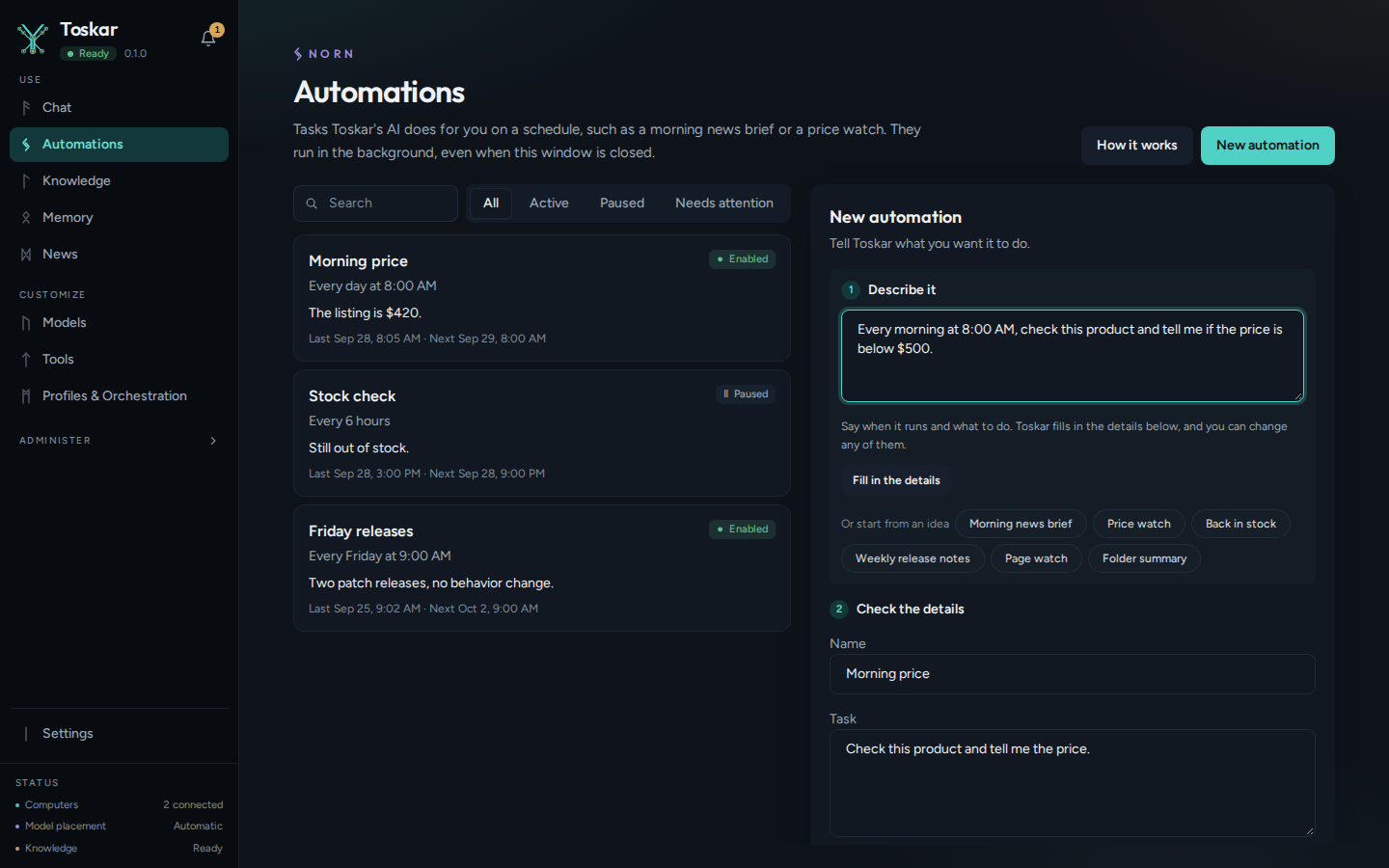
Toskar understands schedules such as every morning at 8:00 AM, every six hours, every Friday (at 8:00 AM unless you name a time), and once tomorrow at 9:00 AM. Write in English or the App language, with times such as 18:30 and prices in your currency, such as 500 € or 5万円.
The profile, model, time zone, and tools are under Advanced. Model Auto picks a model for each run. Automations use memories and connected knowledge as chat does.
When it runs
| Runs | What starts it |
|---|---|
| On its schedule | A time: once, daily, weekly, monthly, every few hours, or a cron expression. |
| When a web page changes | Toskar checks the page on a schedule and runs only when it changed, telling the task what changed. |
| When a feed has new posts | New posts on a site's feed, checked on a schedule. |
| When a file or folder changes | A change to a file or folder on this computer. |
| When another service calls its link (webhook) | A POST to the automation's link. Its body, up to 64 KB, is given to the task as data. |
| When a device changes | A Home Assistant device, such as a door contact or a person sensor, changing, or changing to a state you choose. |
| After another automation | Another automation finishing, or only when it notifies. It gets that automation's result. |
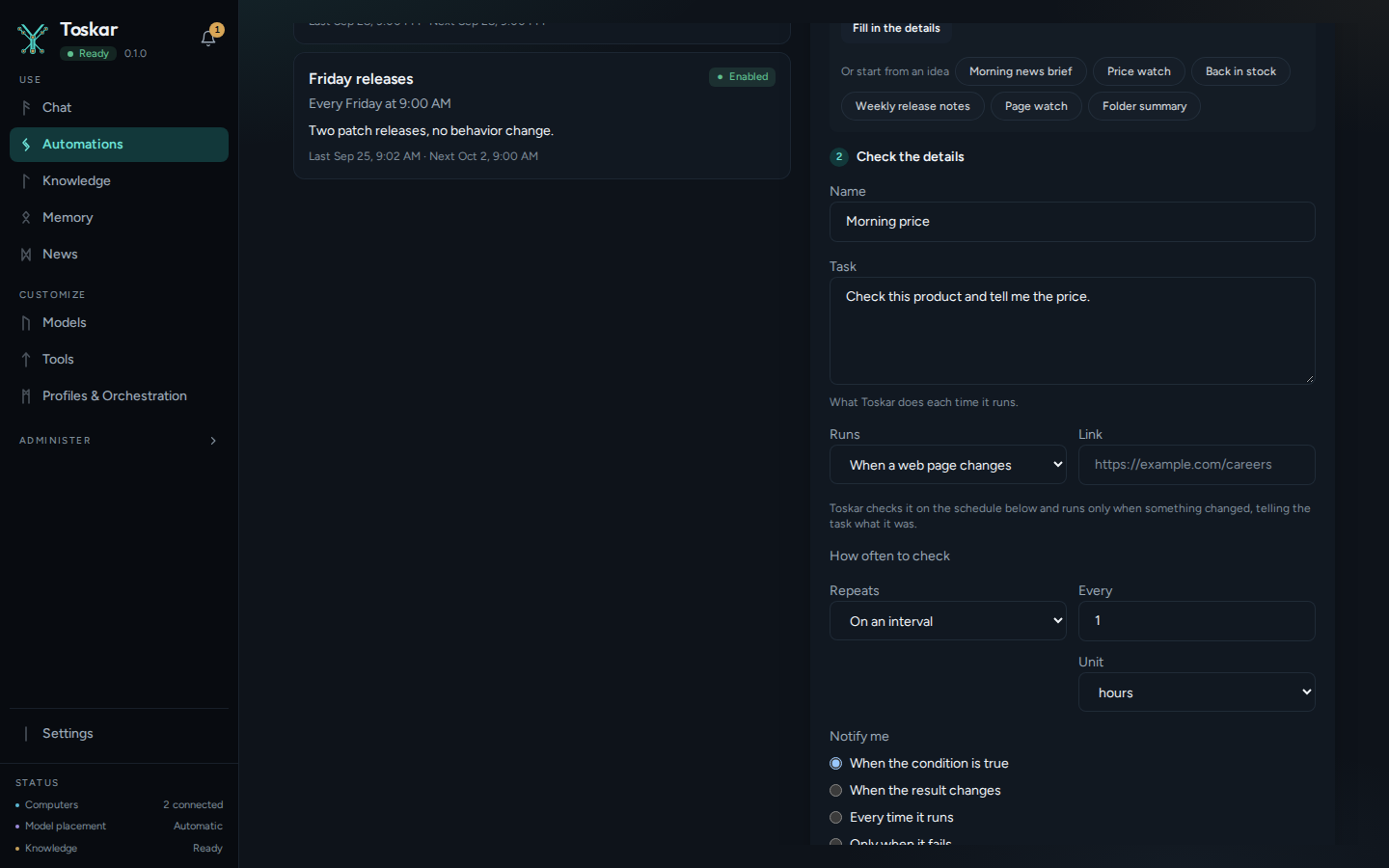
Look at cameras starts each run with a picture from up to a few Home Assistant cameras, shown to a model that can see. A webhook's link is shown once, when you make it on the automation's page, and anyone with the link can start the automation.
When you hear about it
| Notify me | When |
|---|---|
| When the condition is true | The price is below or above your amount, an item becomes available, or the result is significant. |
| When the result changes | A result differs from the last one. The first run is the baseline. |
| Every time it runs | After every successful run. |
| Only when it fails | A run fails. |
| Don't notify me | Never. The result is kept in its history. |
History says why a notice was or wasn't sent, such as a price that wasn't below your amount. Notices go to the bell, and to the places Notifications describes.
Run, pause, and history
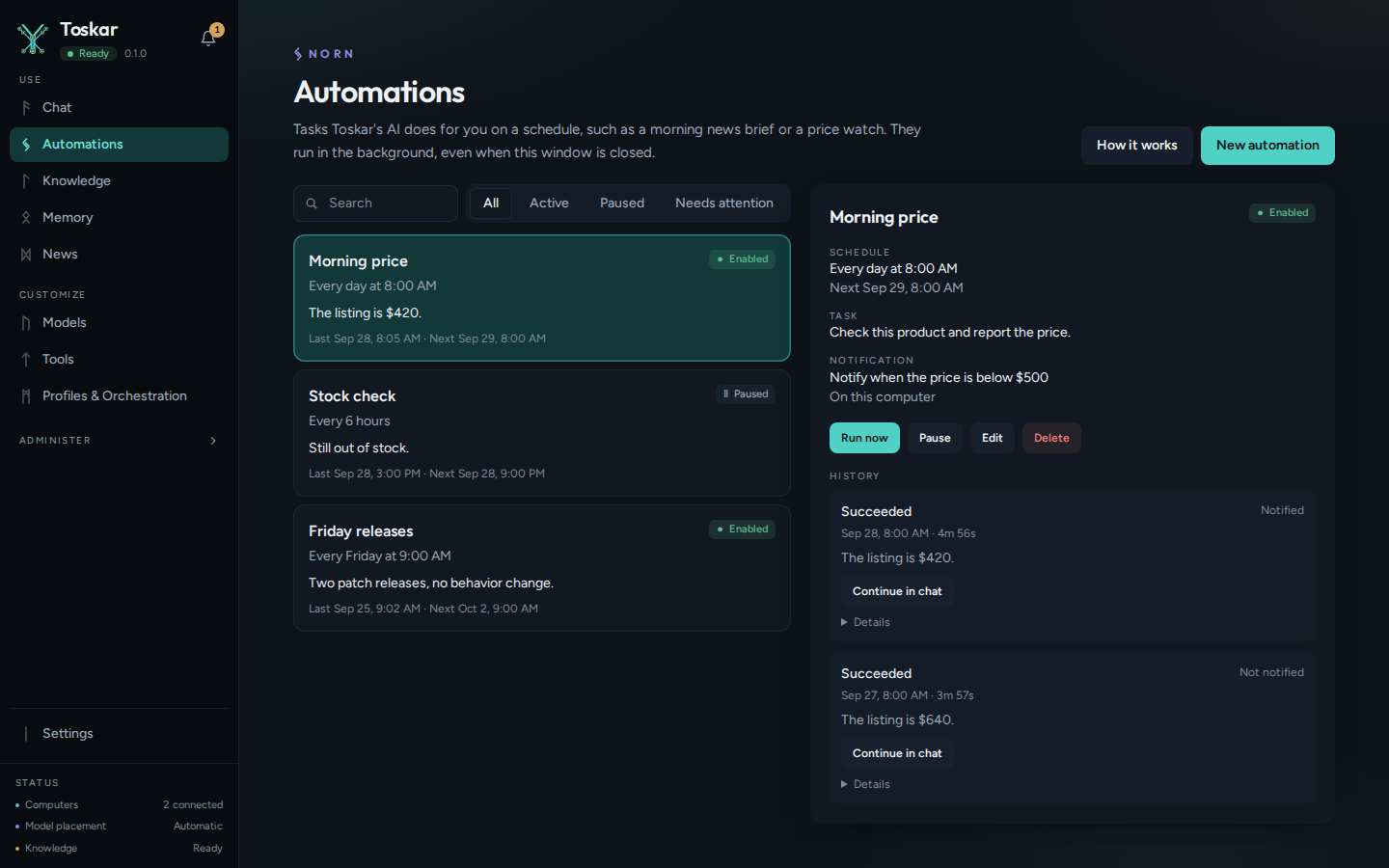
- Run now runs it once right away, and keeps its next scheduled run. A paused automation stays paused.
- Pause and Resume turn it off and on. Edit changes it, and Delete removes it and its history.
- History lists each run, newest first: when it ran, its result, whether you were told, and the model and computer it used.
- After a restart, a missed daily or weekly run happens once, not once for every missed day.
Tools and approvals
With no tools chosen, a run can use the read-only tools the profile allows. Tools you choose are approved when you save, and ones that change things are listed apart. A run that reaches a tool you didn't approve skips it, finishes, and sends a notification naming the tool.
From the command line
toskarctl automations does the same from a terminal: list, create, run, pause, resume, and more. parse shows how Toskar reads a sentence, without saving anything.
toskarctl automations parse "every friday at 9:00 AM, summarize this week's releases"You’ll see something like:
{
  "name": "…",
  "prompt": "Summarize this week's releases.",
  "schedule": {
    "kind": "weekly",
…"hour": 9,
    "weekday": 5
  },
…}
It read a weekly schedule at 9:00 on weekday 5, Friday (Sunday is 0), in this computer's time zone. create with --request and the same sentence saves it.
toskarctl automations create --name "Morning brief" --prompt "Summarize today's AI news in five lines" --schedule daily --at 08:00You’ll see something like:
{
  "id": "…",
  "name": "Morning brief",
  "enabled": true,
  "schedule": {
    "kind": "daily",
…"next_run_at": "…"…}
It talks to http://127.0.0.1:7331 unless TOSKAR_URL is set, and a Toskar on another computer needs TOSKAR_API_KEY.
Troubleshooting
| What you see | What to do |
|---|---|
| Create automation stays unavailable | Install a model first. Saving waits for one. |
| It didn't run at its time | Toskar wasn't running then. In the desktop app, have Settings keep Toskar running in the background. A missed run happens once when it starts again. |
| A run timed out or lost its connection | Toskar tries the same run again up to three times, after one minute and then five. You're told if those fail too. |
| It paused itself | It ran out of memory twice in a row. Choose a smaller model under Advanced, then Resume. |
| A notification names a tool it skipped | Edit the automation and approve that tool, if you want it to use it. |
Tip: An automation waits while you chat, and for 20 seconds after, so it doesn't load a model between your messages.
These pages describe Toskar 1.12.0. Download 1.12.0 and its release notes ↗ · Need help? Report a bug or request a feature ↗