
Documentation / 1.12.0
Choose and manage models
Find a model that fits your computer, install it, add ones you already have, and see what's running.
A model is the AI that writes the answers. Bigger models are more capable and need more memory. Models shows which ones fit each of your computers, installs them, and lets you add models you already downloaded elsewhere.
A downloaded model uses disk space. A running model also uses memory, and Toskar unloads it after a while without use.
What you need
- Toskar running on this computer, or on another computer you connected to it.
- Disk space for the model. Each one shows its download size before you install it.
Pick a model that fits
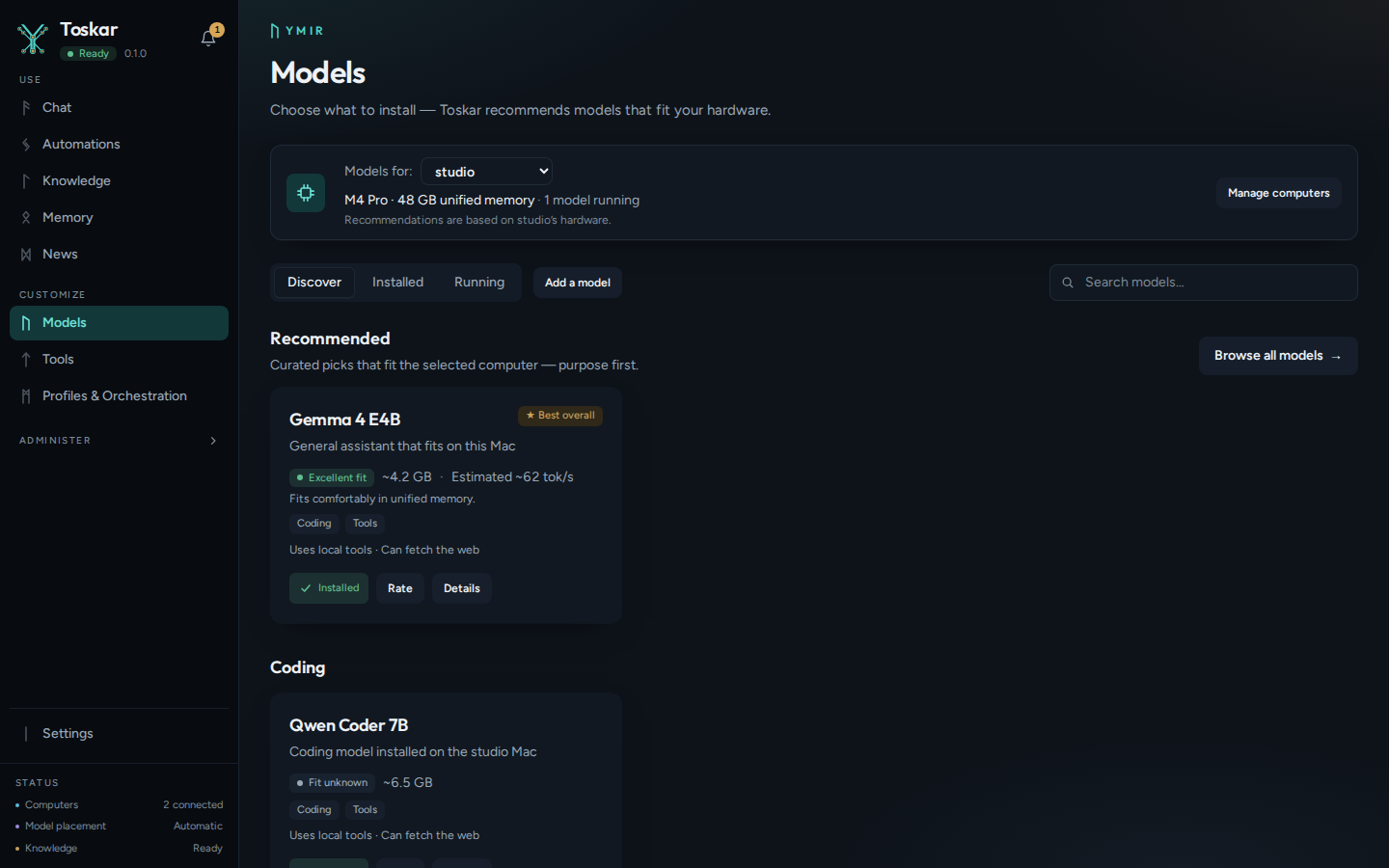
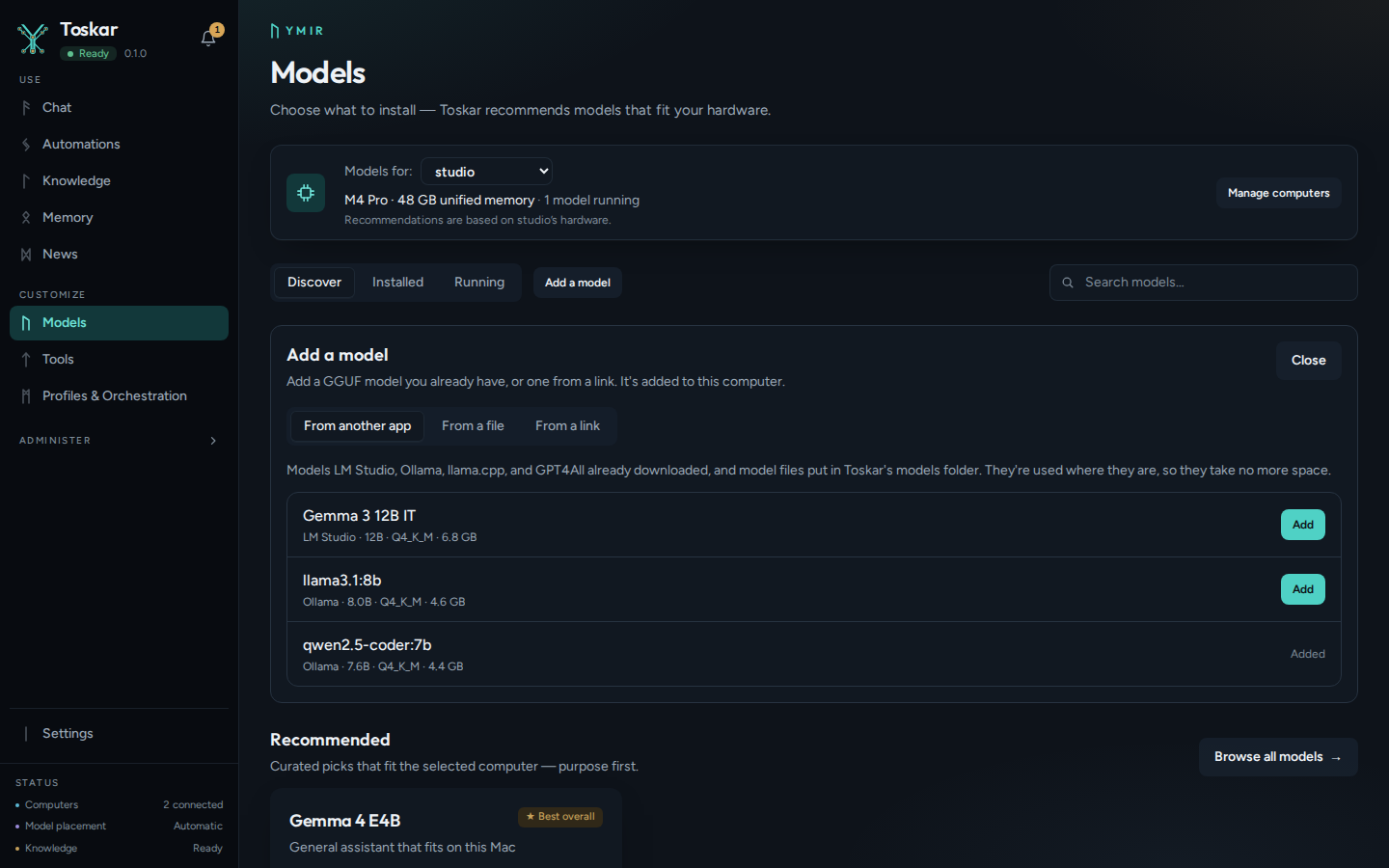
Open Models in the sidebar. Choose the computer in Models for, since a model is installed on one computer and fits its memory. Recommended lists curated picks for that computer, purpose first, each labeled by how well it fits.
| Fit | What it means |
|---|---|
| Excellent | It fits with room to spare. |
| Good | It fits. |
| Tight | It fits, but with little memory left, or it needs more than the graphics card has, so part of it runs on the processor, more slowly. Close other apps if answers slow down. |
| May run slowly | It runs, but slowly on this computer. |
| Unsupported | This computer or its runtime can't run it, so it can't be installed here. |
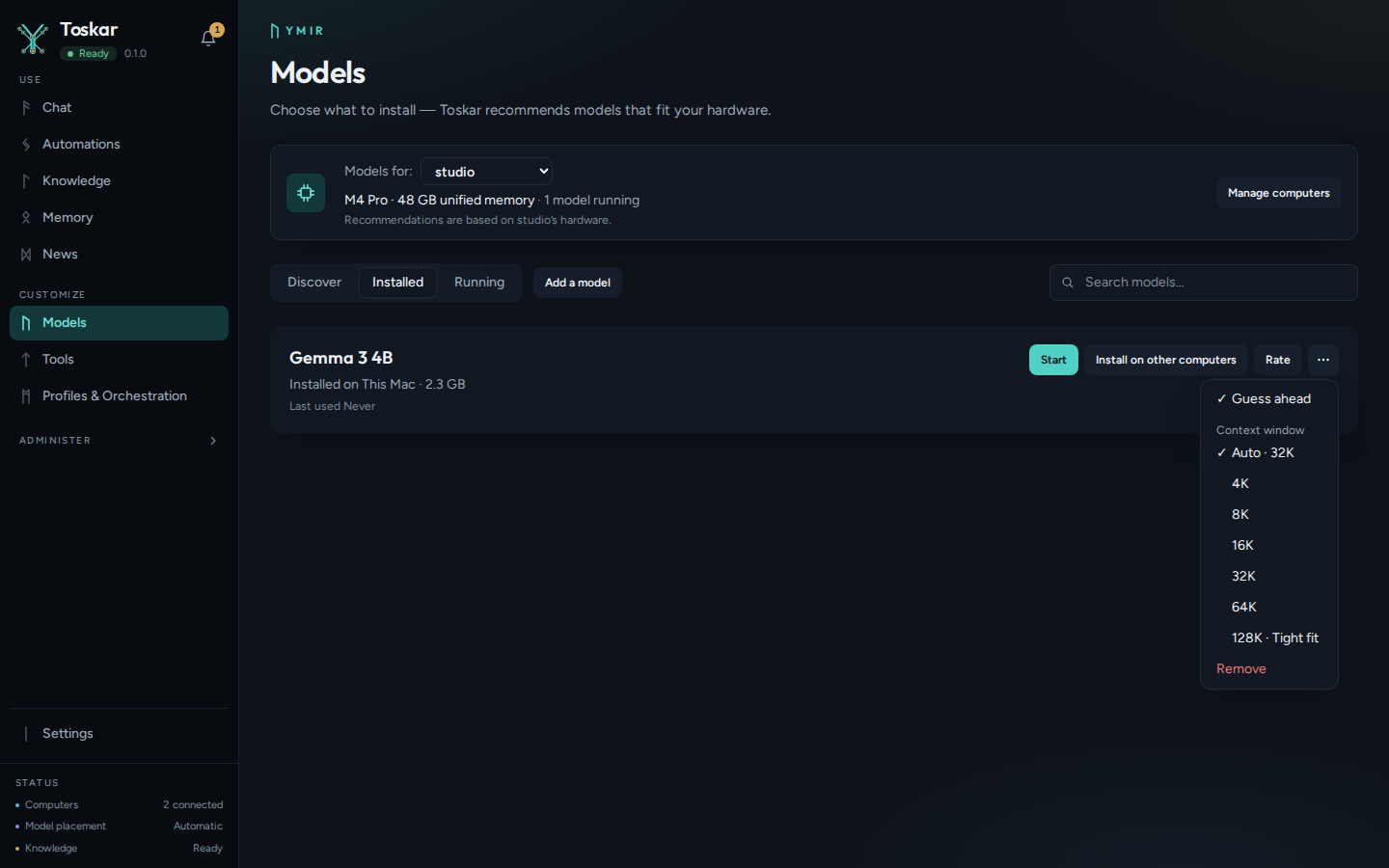
The memory estimate counts the model file, its quantization, and its context. On a computer without unified memory, about 2 GB is kept for the operating system. A speed is an estimate until the model has run on your computer. Then Details shows the measured speed. Answers that repeat or edit text already in the chat, such as fixing code you pasted, come faster: the model guesses the next words from the chat and checks several at once. This is on by default. The largest models also come with a small draft model from the same family, about 0.5 GB, downloaded with them. On a computer the model fits with a Good or Excellent label, the draft writes ahead and the large model checks its guesses, so it answers up to about twice as fast, just as well. Where it fits only tightly, the draft would take memory the model needs, so it isn't used. With Advanced mode on, turn guessing off for one model, draft and all, from that model's More actions menu, under Guess ahead; it changes the next time the model starts. Badges such as Best overall and Best coding go to models labeled Good or Excellent when one qualifies.
A model's context window is how much it reads at once: the conversation, files, and lookups, plus its answer, counted in tokens of about three quarters of a word. Toskar picks it for you, as Auto: 8K, 16K, or 32K, the most at which the model still fits your computer with room to spare. With Advanced mode on, choose another size for one model from its More actions menu, under Context window. Pick a bigger one, up to what the model was made for, for long documents or coding tools that send a lot at once. Pick a smaller one to free memory. Each size says how well the model fits at it, and one it won't fit at can't be chosen. A model that's running reloads with the new size on its next message.
What each kind of model is for
- Chat models answer in chats. Some also write code, think before they answer, or see pictures; Auto sends each request to one that can.
- Embedding and reranker models are supporting models: they help Knowledge search and never answer chats.
- Picture and clip models make pictures and video. They're set up on the Tools page or from a chat's offer, and What pictures and clips need lists them with the memory each wants.
- Speech models transcribe audio and read answers aloud. Toskar downloads them the first time you use either, so they aren't on this page.
Ratings
A model's card can show community ratings from computers like yours: the stars, how many ratings there are, and how it runs, such as how soon answers start. A badge chosen with them says Chosen with ratings from computers like yours.
Rate, on an installed model, saves your own stars and reasons on this computer. Share this rating with the community is your choice. Exactly what is shared lists what's sent: the stars and reasons, the model, the kind of computer and its memory, the language if you give one, how it runs here if you choose Include how it runs here, and a random ID. It never sends your prompts, chats, file names, computer name, user name, or network address.
Install, run, and remove a model
- Choose Install on a model and wait for the download. Installed lists what's on the chosen computer.
- Use the model in a chat: choose it in the Model menu, or leave Model on Auto to let Toskar pick.
- Running shows the models in memory now, with the memory they use and their speed. Stop unloads one.
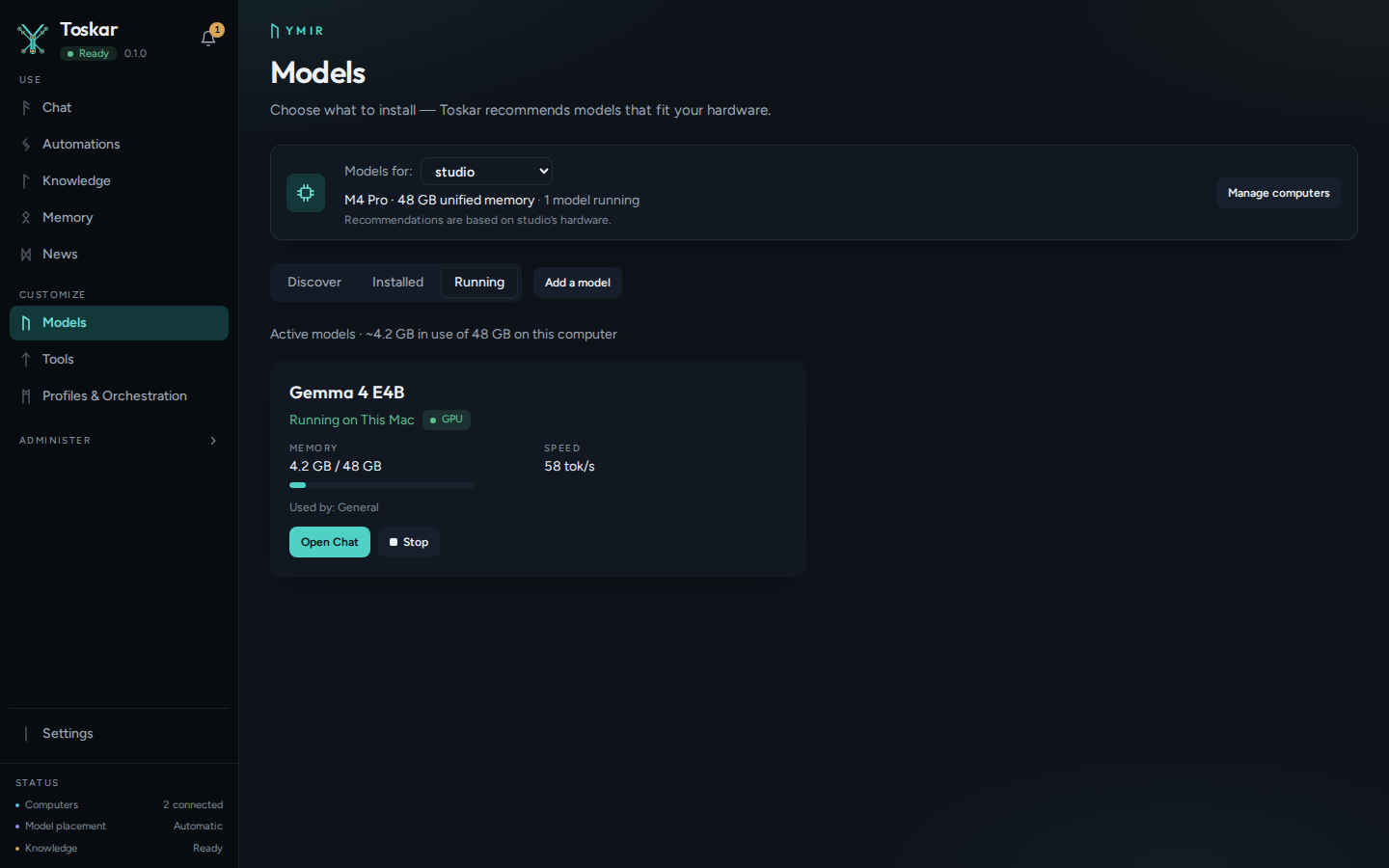
A loaded model is unloaded after 15 minutes without use, unless Settings sets the model lifecycle to manual or another time. Settings also sets the most disk space models may use.
Find more models
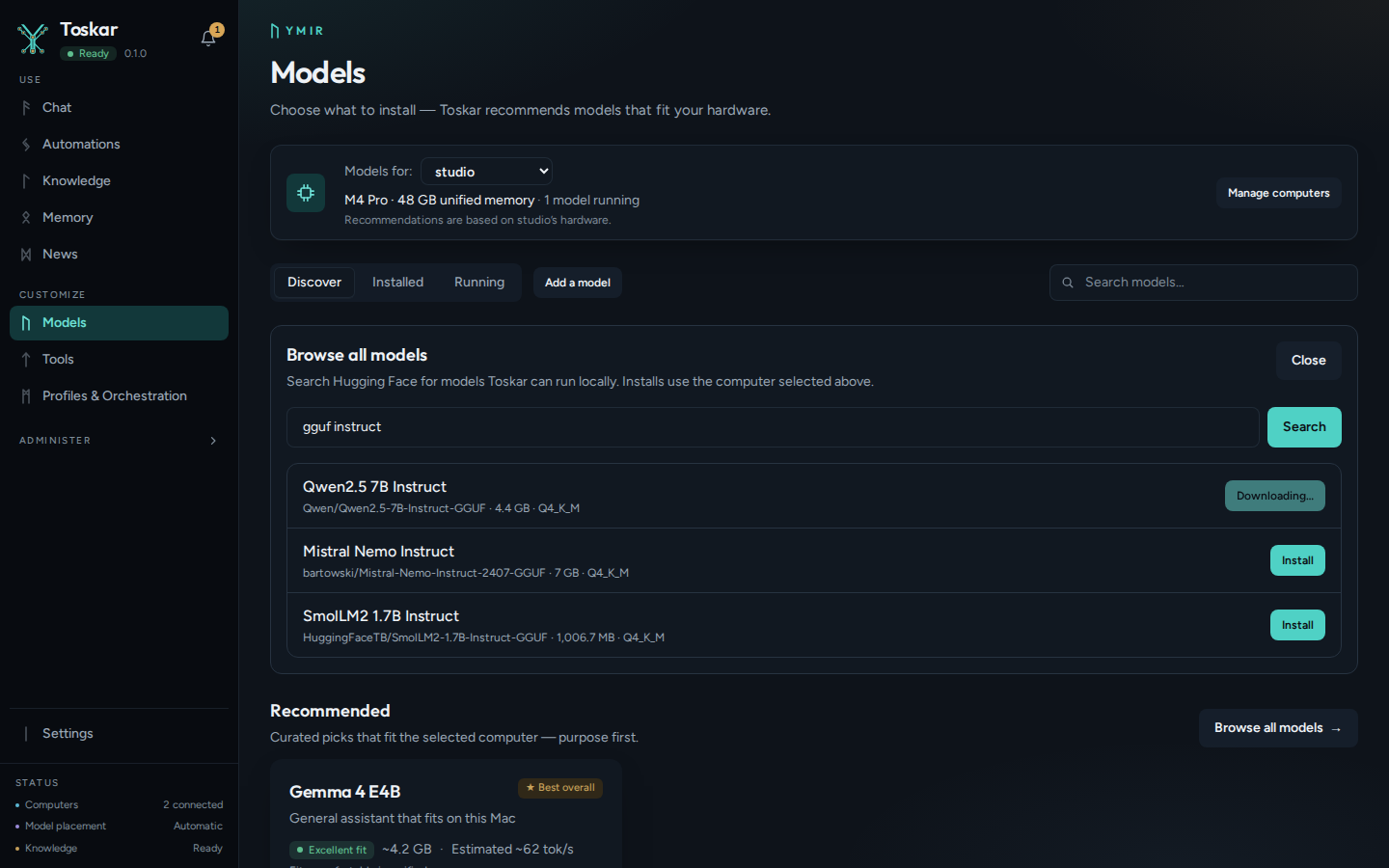
Browse all models searches Hugging Face for GGUF models, the format Toskar runs. Install from there shows the download as it happens. Embedding and reranker models are supporting models: they help Knowledge search and never answer chats, so the chat menus leave them out.
Add a model you already have
Add a model adds one that isn't in the lists, in three ways.
- From a file: drop a .gguf file, or give the location of one on this computer. Copy it into Toskar, or use it where it is with no copy.
- From another app: the models LM Studio, Ollama, llama.cpp, and GPT4All already downloaded, added where they are so they take no more space.
- From a link: a GGUF file's web address, which Toskar downloads.
Warning: A model used where it is depends on that file. Deleting the model in Toskar leaves the file alone, and moving or deleting the file stops the model working.
When Toskar suggests a better model
After an answer, Toskar may offer a model that would have answered it better. It might write code better, read your files more reliably, write your language better, think through math and logic, or read a longer chat at once.
It says why, how big the download is, and how well it fits. Install and answer again installs it and answers the same question with it, as a new version beside the first answer. Each kind is offered once in a chat, only to Admins and the Owner, and only for a model this computer runs well. Settings › History › Suggest better models turns it off for you.
New models in the news
News lists new AI models as they come out. One that Toskar can run shows its fit for your computer, and an Admin can install it from there. While it downloads, Installing… see Models opens Models.
From the command line or the API
toskarctl models list lists the models, smallest first, with their download size and fit on the computer it talks to. --installed shows only installed ones, and --json prints everything.
toskarctl models listYou’ll see something like:
ID…NAME…SIZE…FIT…INSTALLED
…llama-3.2-1b-q4…Llama 3.2 1B…800 MB…
toskarctl models install downloads a model by its ID and waits until it's installed, showing how far it has got. On a computer without a desktop, it's the quickest way to add one.
toskarctl models install llama-3.2-3b-q4It prints a line such as Downloading Llama 3.2 3B: 40% (840 MB of 2.1 GB) every tenth of the way, then Installed Llama 3.2 3B.
GET /api/v1/models lists the catalog with what's installed, and each model's fit and capabilities.
curl -s http://127.0.0.1:7331/api/v1/modelsTroubleshooting
| What you see | What to do |
|---|---|
| The model fails to load, or answers slowly | Choose a smaller model, or a smaller version of the same one. |
| Tight | Close other apps to free memory, or choose a model labeled Good or Excellent. |
| Tight, because it needs more than the graphics card has | Part of the model runs on the processor. Choose one that fits on the card for full speed. |
| The download stops because the disk is full | Remove a model you don't use, or raise the limit in Settings. |
| A model from another app stopped working | Its file was moved or deleted. Add it again from its new place. |
These pages describe Toskar 1.12.0. Download 1.12.0 and its release notes ↗ · Need help? Report a bug or request a feature ↗