
Documentation / 1.12.0
Chat
Ask Toskar a question, work with files, and come back to a conversation later, all on your own computer.
Chat is where you talk to the AI on your computer. You type a question, and an installed model writes the answer while you watch. Your questions and its answers stay on your computer.
Toskar picks a model for each message unless you choose one. Answers list their sources, a chat remembers files you attached, and every chat is saved in History until you delete it.
What you need
- Toskar running on this computer, or on another computer you connected to it.
- An installed model. With none, sending your first message asks before downloading the recommended one. Choose and manage models explains how to pick one.
Ask a question
- Choose Chat in the sidebar, or New chat to start a fresh conversation.
- Type your question where it says Ask Toskar anything…, and press Enter. Shift-Enter starts a new line instead.
- Read the answer as it's written. Stop ends it, and any web look-ups for it, and keeps what was already written.
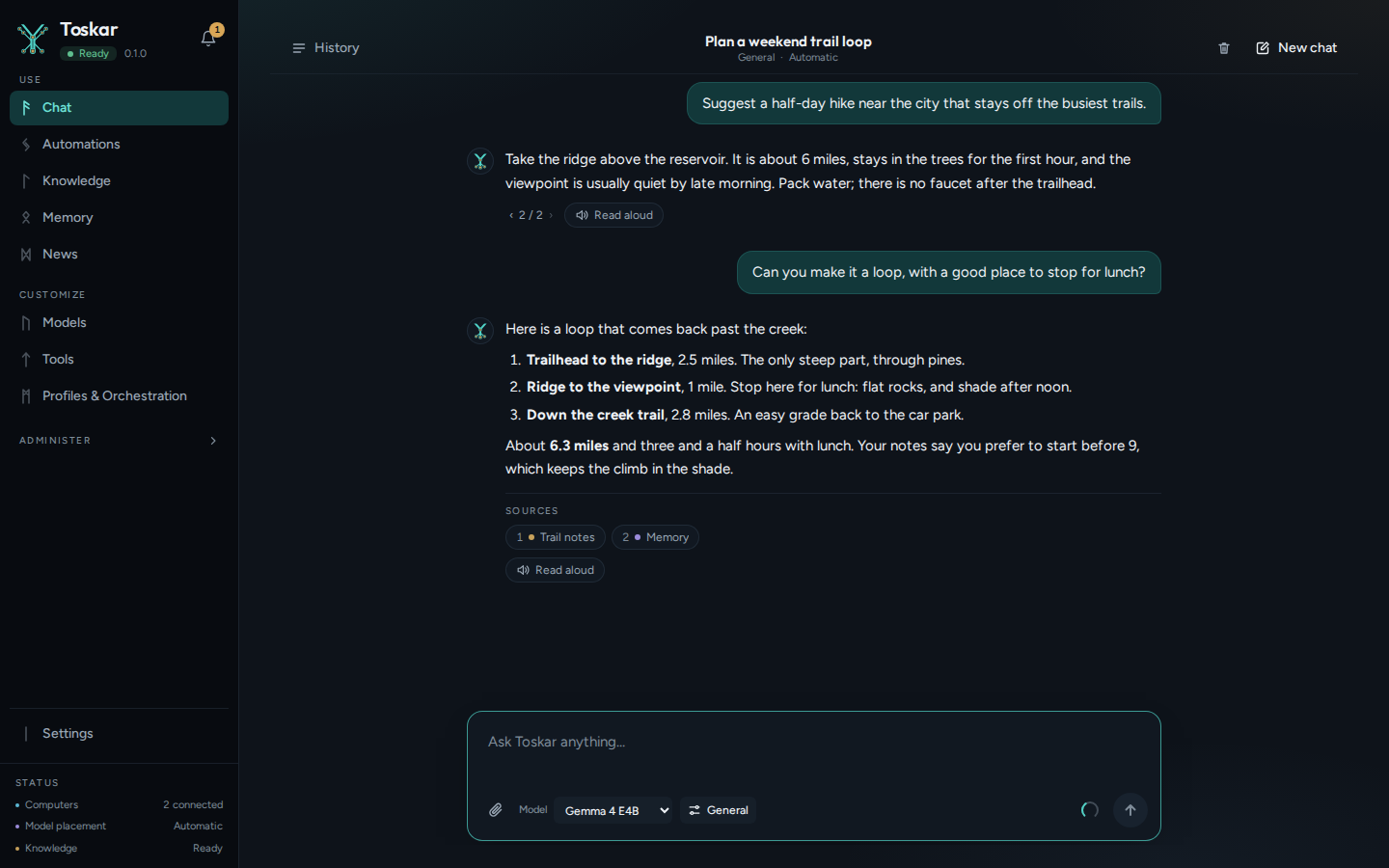
Choose the model, profile, and effort
Model Auto picks an installed model for each message. A quick question stays on a model that's already loaded. Coding goes to a coding model. A question about current information, or a task on this computer, goes to a model that can use tools. A question about your files or knowledge prefers a larger model.
Choose a model in the Model menu to keep it for the whole chat. The button beside it opens the chat's options: Profile, Run on, Effort, and Memory, and Thinking when the model thinks before it answers. Answer without thinking first covers that one.
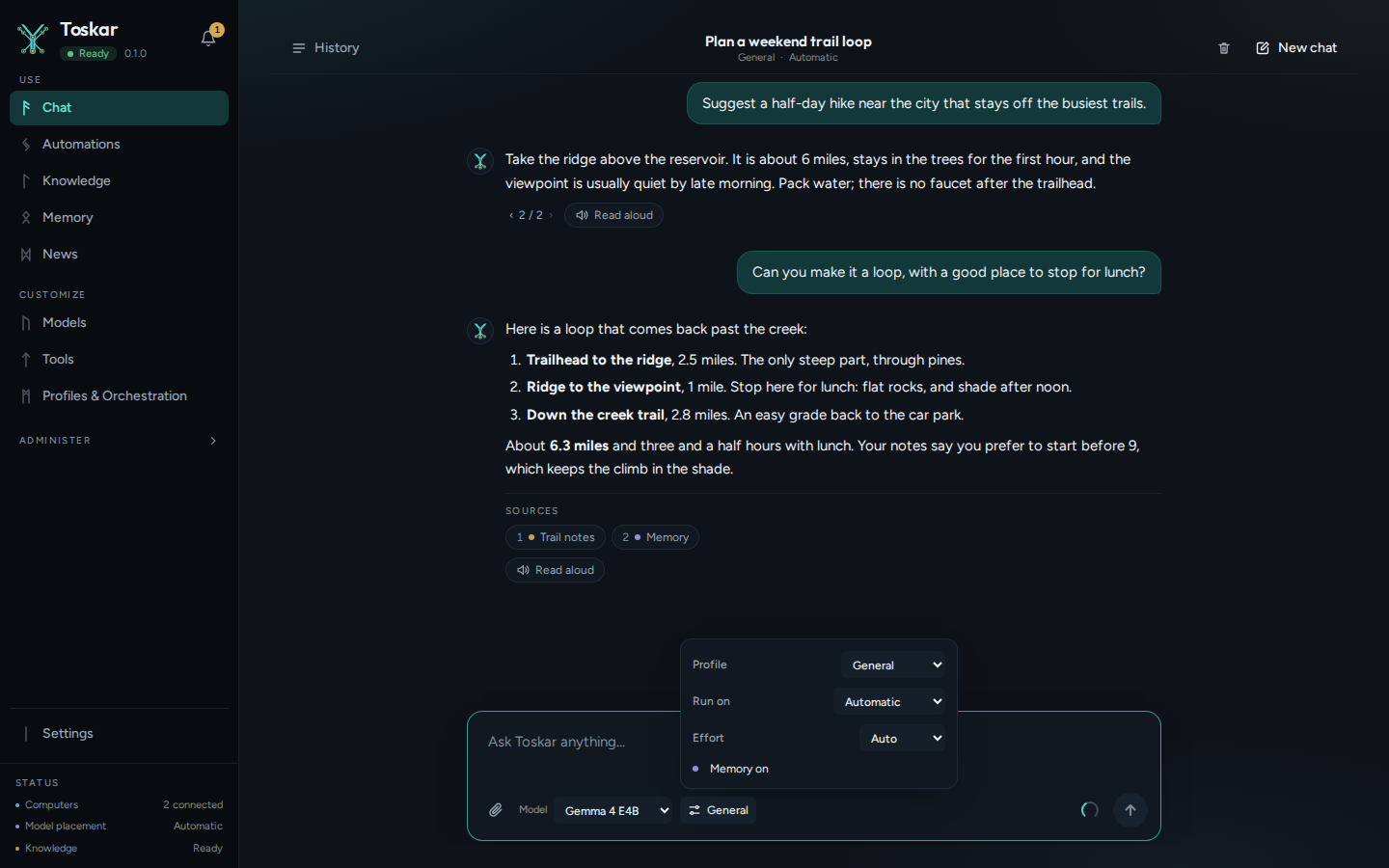
| Effort | What it does |
|---|---|
| Auto | Keeps quick questions fast, and gives questions about your data, and requests with several parts, more care. |
| Fast | Answers in one go, on a model that's already loaded. |
| Balanced | Plans requests with several parts, and reads a page for each look-up. |
| Thorough | Reads more pages, checks figures twice, and uses the largest model that fits. |
Your choice of effort is remembered. More care makes answers slower. Get more careful answers covers reasoning models and comparing drafts.
Attach files and pictures
Attach a file with the paperclip, by dropping it on the message box, or by pasting it. Toskar reads documents (including Word and PowerPoint), spreadsheets, PDFs, and code. Each file can be up to 25 MB.
The answer cites the file, and later questions in the chat can still use it. A scanned PDF is read with text recognition, which takes a moment the first time. Audio is transcribed, and a video is read from its sound and from pictures of it.
Pictures go to a model that can see, even when you chose another model for the chat. If none is installed, the answer offers one to set up, with its download size, and answers once it's ready.
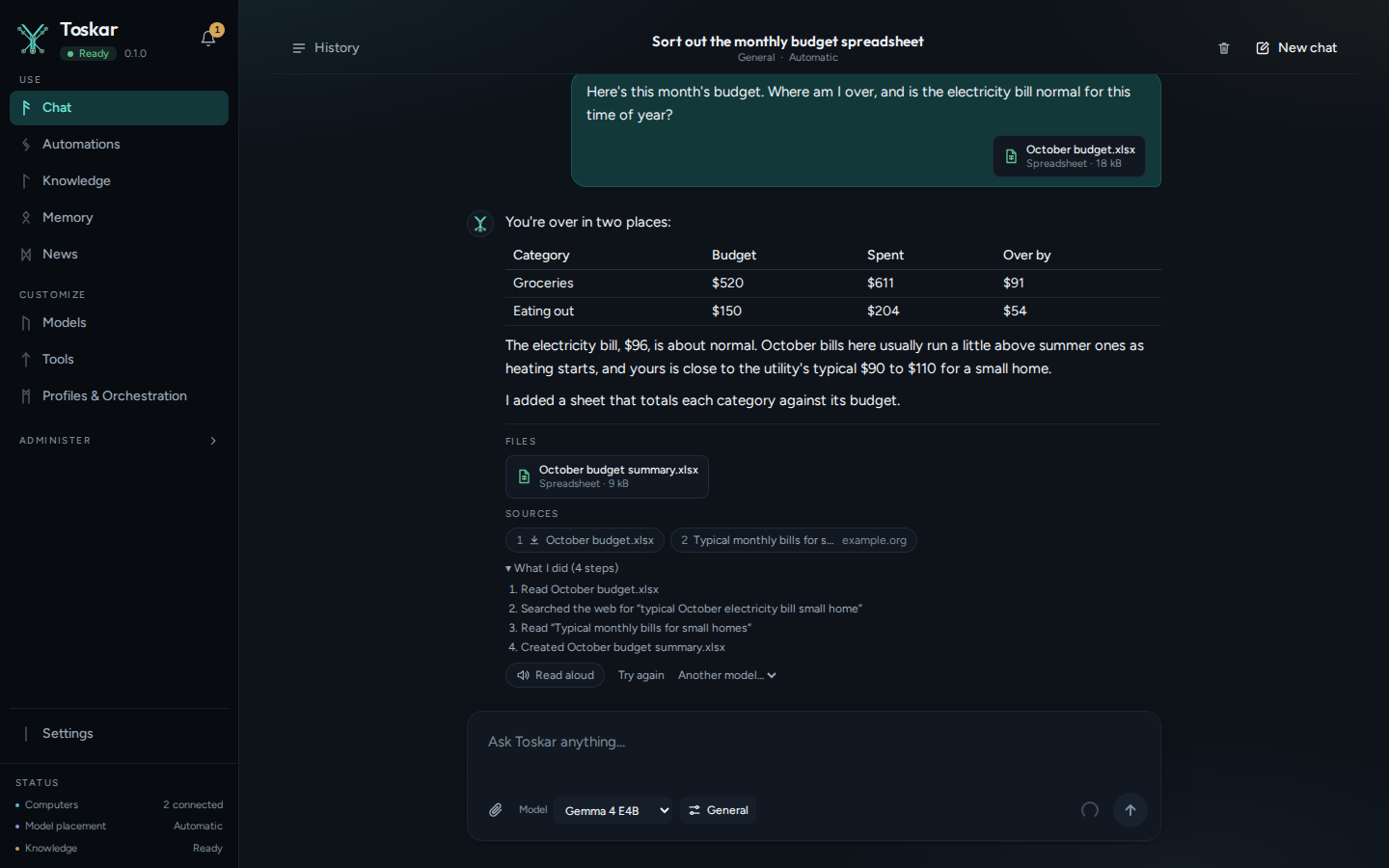
Tip: Ask for a file, such as a spreadsheet of prices or a Word document, and the answer comes with a download. Spreadsheets are real .xlsx workbooks.
Answers from the web
When a question needs current information, such as today's weather, a price, or the news, Toskar searches the web and reads the pages it finds. The question is sent to the search, and the pages are read on your computer. Web under the message box means the chat's profile allows it.
Searching needs a model that can use tools, and Auto picks one. If the model you chose can't, a note says so when you send, and lists models that can, with Use this model. If the chat's profile has web access turned off, the note says live web access isn't available, and an Admin can choose Enable Internet to turn it on for that profile.
Check where an answer came from
Under each answer, Sources lists the web pages, knowledge passages, files, and memories it used. What I did lists the model that answered and why, the searches and pages it read, and anything that went wrong.
Figures are checked against the sources before you see the answer. A figure that couldn't be confirmed is called out below it. A request with several parts, such as comparing three products, shows a checklist while its parts run.
Try again, or edit your question
- Try again, under an answer, writes a new version of it. Another model… tries again with the model you pick.
- Edit, under your own message, lets you change it. Sending makes a new version of the conversation from that point.
- When there's more than one version, ‹ 1 / 2 › switches between them. The earlier versions stay.
The version showing is the one the chat continues from, and the one it opens to next time. These controls appear when you point at a message, and are always shown on a touch screen.
Long chats
The ring beside Send shows how much of the model's context window the chat uses: how much it can read at once. When a chat passes about half of it, older messages are summarized after the reply, and every message stays saved. Long chats and auto-compact explains how to read or correct the summary.
Find, pin, and delete chats
History lists your chats by date, with a search box at the top. Each chat's menu renames, pins, or deletes it. Pinned chats stay at the top.
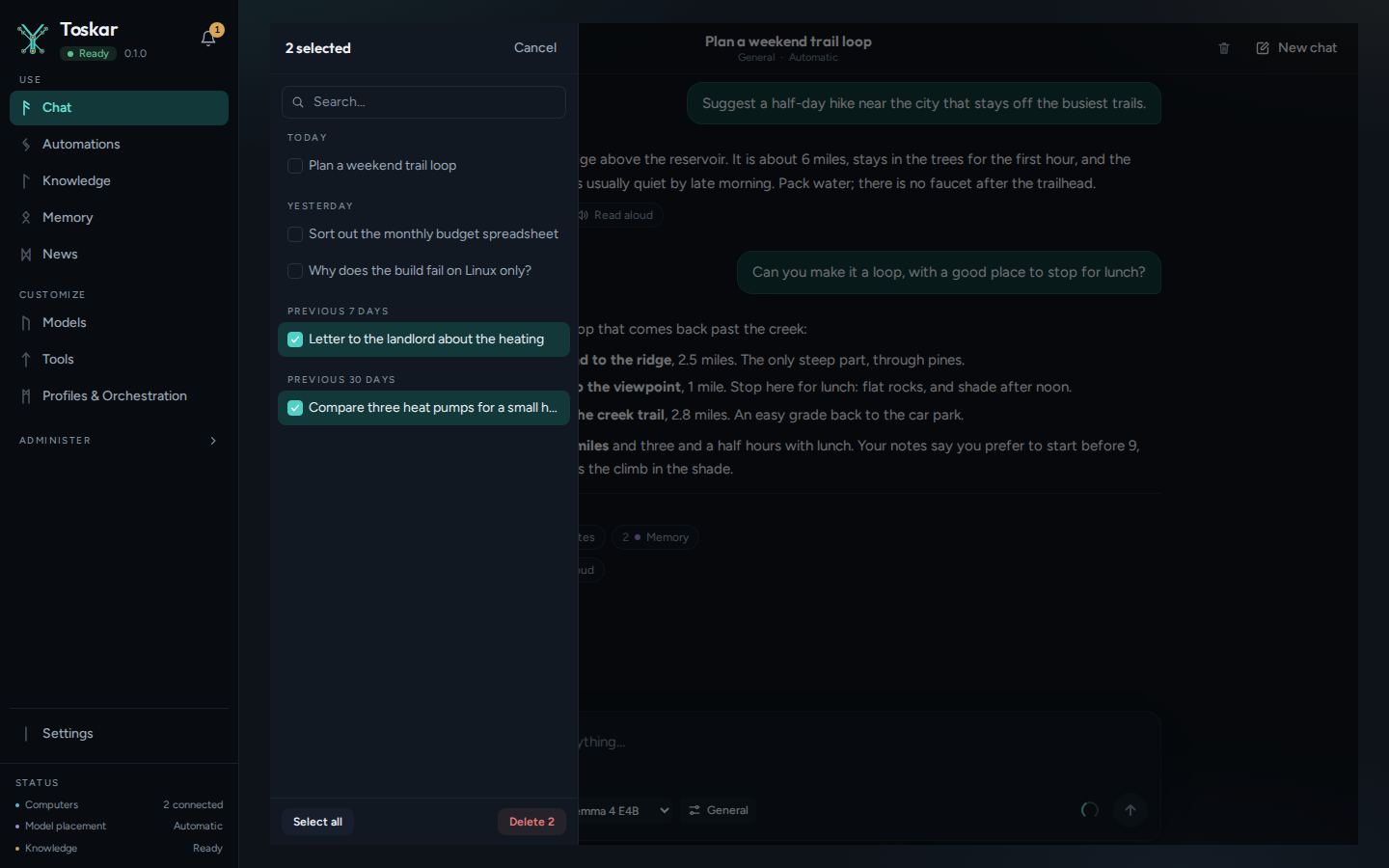
- To delete several chats, open History and choose Select.
- Tick the chats. Shift-click selects a range, and Cmd-click or Ctrl-click adds one. Select all takes every chat the search shows.
- Choose Delete and confirm once. Undo brings them back for 10 seconds.
Tip: Settings › History deletes chats last used more than 30, 90, or 365 days ago. It keeps pinned chats, and says how many it will delete before you confirm.
From the command line or your own code
toskarctl ask asks a question from a terminal and prints the answer.
toskarctl ask "Plan a three-day trip to Juneau"toskarctl chat holds a whole conversation in the terminal. Answers stream as they're written. A tool that asks first shows what it would do and waits for your yes. The chats are the same ones the apps show, so toskarctl chat --resume picks up one you began on your phone. Piped in, it answers once about what's piped, as in make 2>&1 | toskarctl chat "Why did this fail?".
The Python SDK streams the same answer a piece at a time. Connect another app through the API covers the other languages and API keys.
from toskar import Toskar

with Toskar() as toskar:
    for event in toskar.chat_stream("Plan a three-day trip to Juneau"):
        if event.type == "token":
            print(event.content, end="", flush=True)
    print()
Troubleshooting
| What you see | What to do |
|---|---|
| No model installed yet | Choose Open Models and install one, or send your message and accept the download. |
| The first answer takes a while to start | The model is loading into memory, which happens once. Effort Fast keeps quick questions on a model that's already loaded. |
| Toskar can't read this type of file yet | Save it as a PDF, Word document, spreadsheet, or text file, and attach that instead. |
| A model cannot use tools, so it cannot look that up | Choose Use this model beside one of the models listed, or set Model to Auto. |
| I can't see pictures yet | Choose Set it up to download a model that can see. The answer comes once it's ready. |
| Files can be up to 25 MB | Split the file, or attach only the pages you need. |
| A figure is called out as not confirmed | Open Sources to check it, or set Effort to Thorough and ask again. |
These pages describe Toskar 1.12.0. Download 1.12.0 and its release notes ↗ · Need help? Report a bug or request a feature ↗