
Documentation / 1.12.0
Install and start your first chat
Get Toskar on your computer, install a model that fits it, and ask your first question.
Toskar Pro is the app for your Mac or Windows computer, from the Mac App Store and the Microsoft Store. Toskar Core is the free, open-source service behind it, for servers, Linux, and anyone who wants it without the app.
Either way, the first time you open Toskar it looks at your computer, suggests an AI model that fits it, and downloads it. Then you can chat.
What you need
- A Mac with Apple silicon, or a Windows computer, for Toskar Pro. Toskar Core also runs on Linux.
- Memory for the model. More memory runs larger, more capable models, and Toskar shows which ones fit.
- Internet access and a few gigabytes of disk space for the first model download. After that, chats work offline.
What your computer can run
A model has to fit in memory to answer quickly. More memory runs larger models, which write better answers and follow longer instructions. Here's what fits well, by memory:
| Memory | Models that fit well | For example |
|---|---|---|
| 8 GB | Small models, up to about 3.5 GB | Llama 3.2 3B, Qwen 3.5 4B, Phi 3.5 Mini |
| 16 GB | Up to about 9 GB | Qwen 3.5 9B, Qwen 2.5 7B, Gemma 2 9B |
| 24 to 32 GB | Up to about 10 GB, the 14B models | Qwen 2.5 14B |
| 64 GB or more | The 30B models, about 21 GB | Qwen 3.8 27B, Qwen 2.5 32B |
On a Mac, the graphics use part of the computer's memory, and the table counts that part. A graphics card on a Windows or Linux computer brings its own memory, so larger models run there too. You don't need to work this out yourself: Toskar checks this computer and labels every model by how well it fits.
Choose how to install
| For | Get |
|---|---|
| A Mac | Toskar Pro from the Mac App Store. It's free to try; see Toskar Pro's free trial and Unlock. |
| A Windows computer | Toskar Pro from the Microsoft Store, with a free trial. |
| A server or a Linux computer | Toskar Core, with the install script below. It runs as a service that starts when the computer does. |
| A Mac, without the app | Toskar Core with Homebrew. |
| Your phone, tablet, TV, or watch | The Toskar app, which uses the AI on your computer. See Use Toskar on your phone, tablet, or TV. |
Install Toskar Pro
- Open the Mac App Store or the Microsoft Store and search for Toskar Pro.
- Install it, then open it from your Applications folder or the Start menu.
Install Toskar Core
On Linux, the install script adds the release's package, checks it against the release's SHA256SUMS.txt, and starts Toskar as a service. On a Mac it installs the release's files and starts them with launchd. CI runs this line on a fresh Ubuntu computer.
curl -fsSL https://github.com/yeixio/toskar-core/releases/latest/download/install.sh | shOn Debian or Ubuntu, you can add Toskar's apt repository instead. It's signed, and apt checks every update against its key. The release tests these lines on a fresh Ubuntu computer.
sudo install -d -m 0755 /etc/apt/keyrings
curl -fsSL https://toskar.ai/apt/toskar.asc | sudo tee /etc/apt/keyrings/toskar.asc > /dev/null
echo "deb [signed-by=/etc/apt/keyrings/toskar.asc] https://raw.githubusercontent.com/yeixio/toskar-core/apt stable main" | sudo tee /etc/apt/sources.list.d/toskar.list
sudo apt-get update
sudo apt-get install toskar
Other Linux computers get the release's rpm package, which the install script uses too. There's no published container image yet.
With Homebrew on a Mac:
brew tap yeixio/toskar https://github.com/yeixio/toskar-core
brew install yeixio/toskar/toskar
toskar
Tip: The install script and the apt lines are tested on a fresh Ubuntu computer. The Homebrew lines aren't tested yet, because they install on the computer that runs them. Run without a desktop covers the service and updates.
Set up on first launch
- Open Toskar Pro, or go to http://127.0.0.1:7331 in a browser on the computer running Toskar Core. Only that computer can reach it at first.
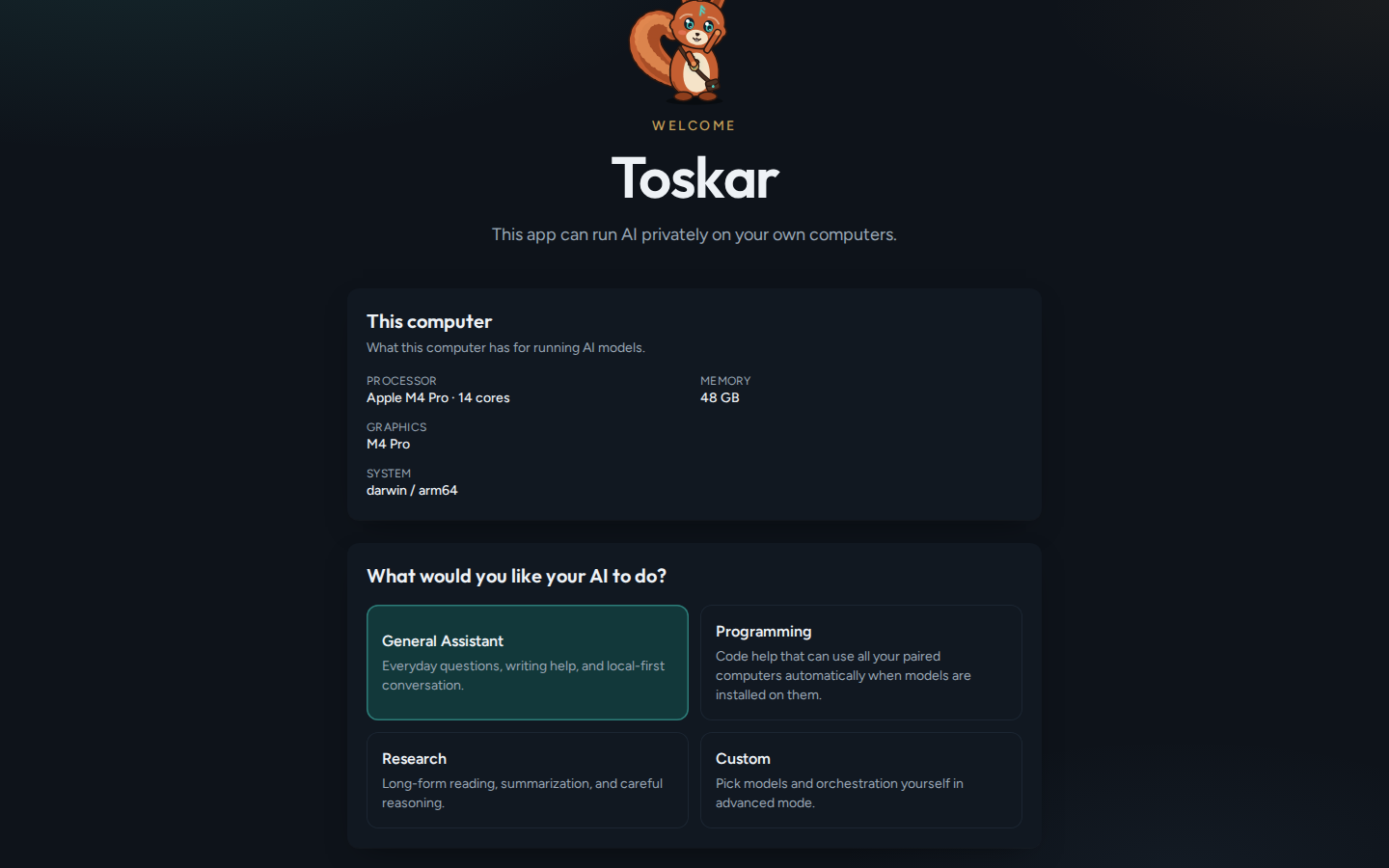
- Toskar shows what this computer has for running AI. Choose what you'd like your AI to do, such as General Assistant, then choose Continue.
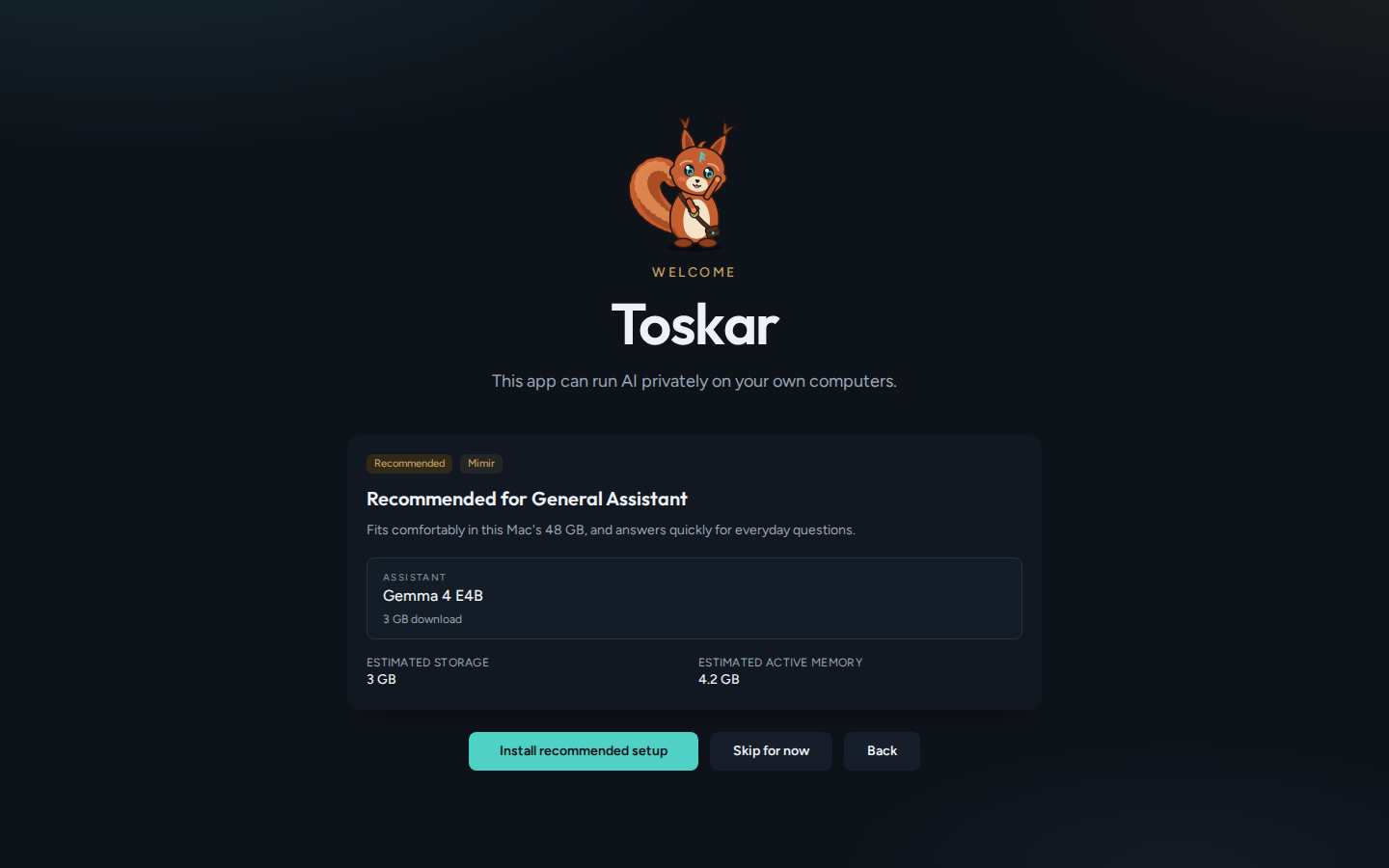
- Toskar recommends a setup that fits this computer. Choose Install recommended setup and wait for the download.
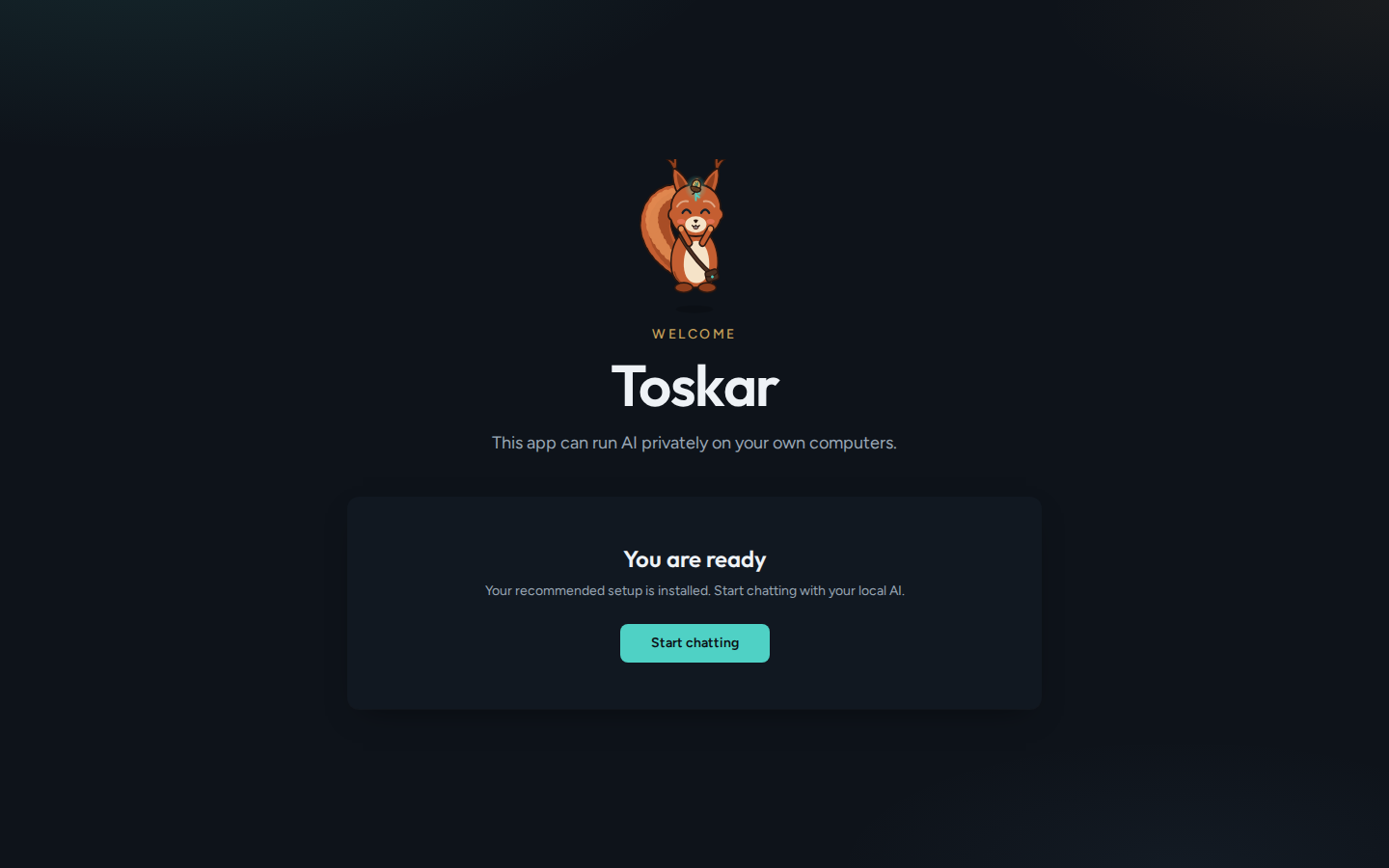
- Keep the window open while it downloads. It shows how far it has got. When it says You are ready, choose Start chatting.
Ask your first question
- Choose Chat in the sidebar, type a question, and press Enter.
- The first answer can take a little longer while the model loads into memory. Later ones start sooner.
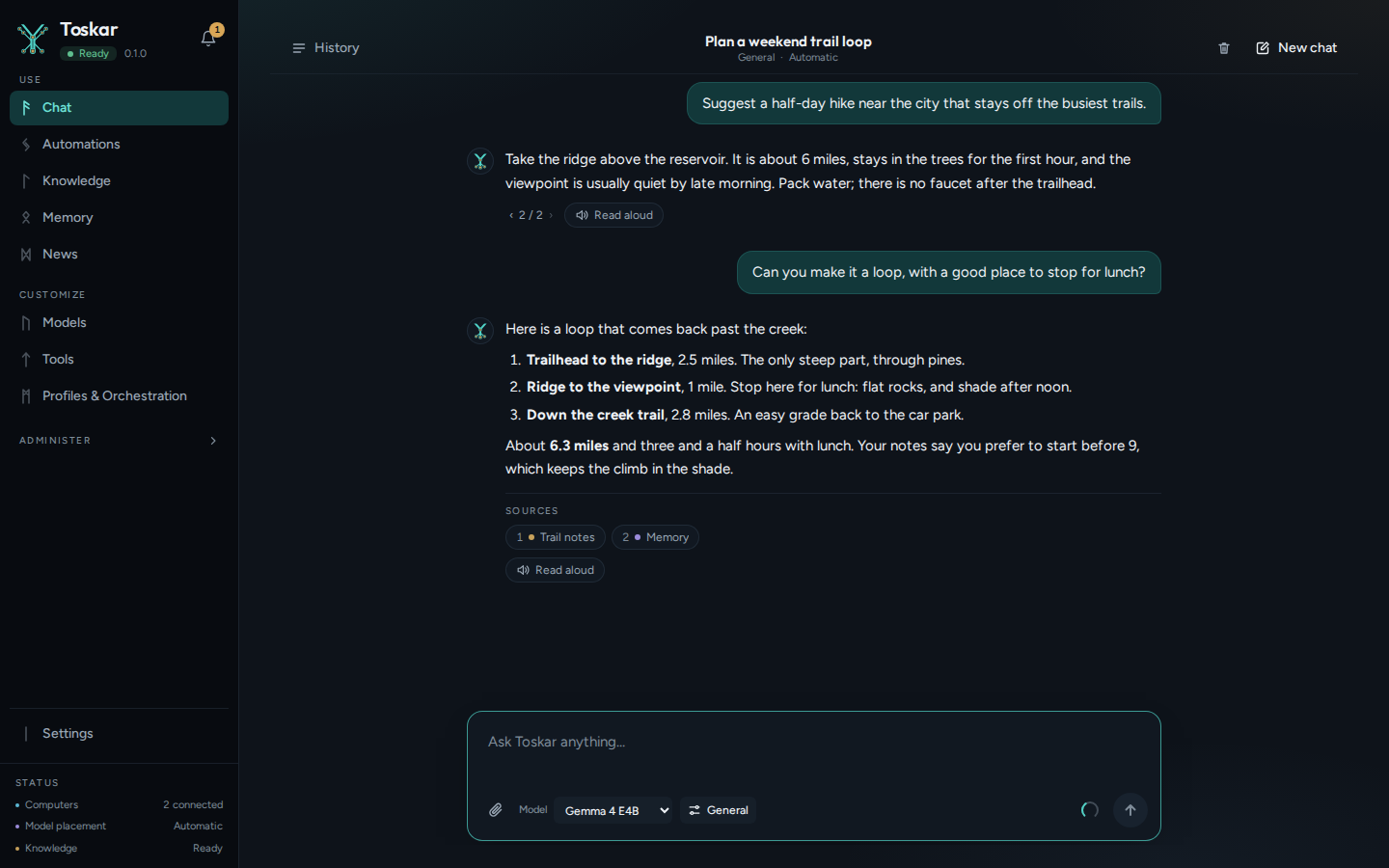
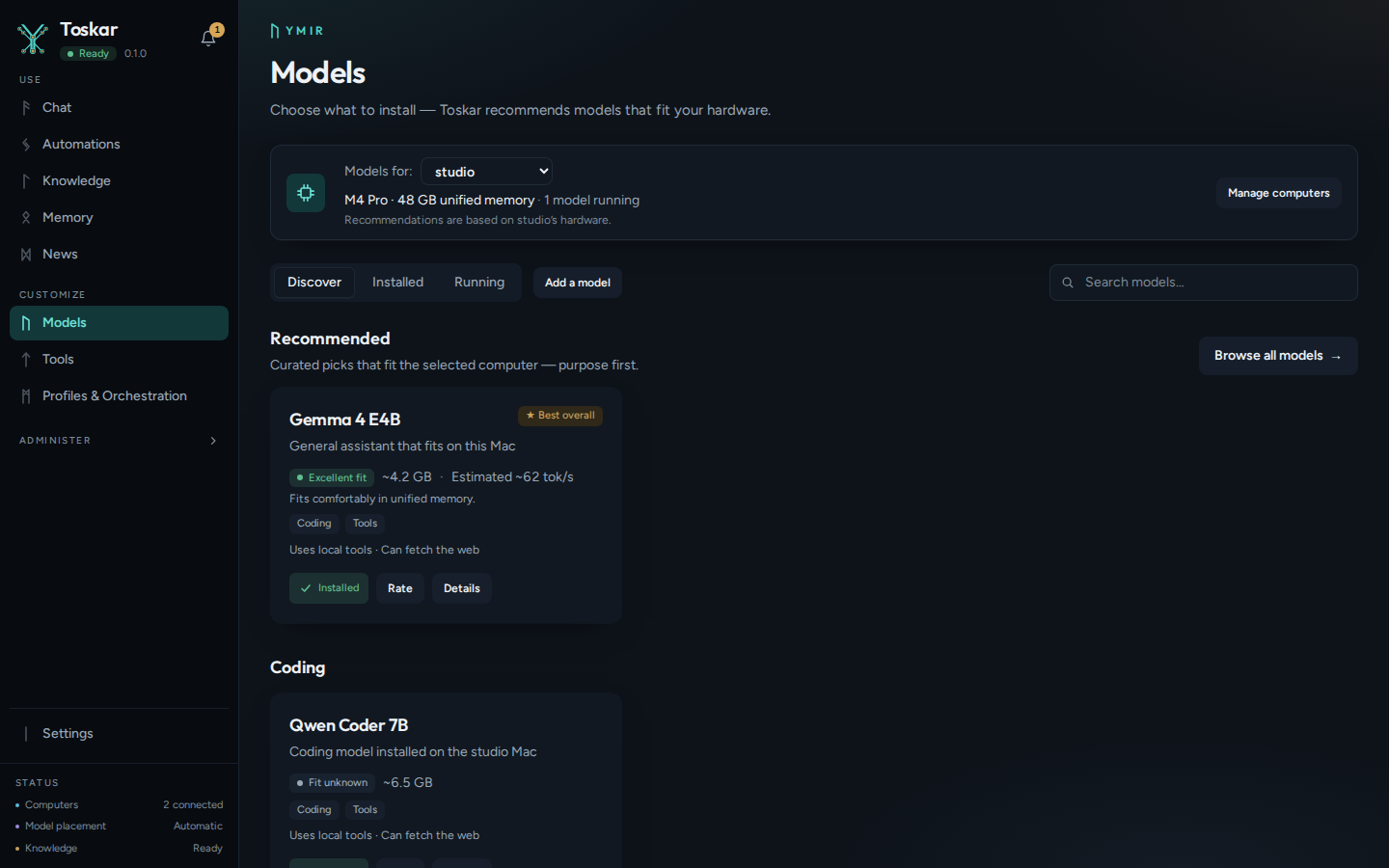
Models shows more models, each labeled by how well it fits this computer. Choose and manage models explains them, and Chat covers everything a chat can do.
Check your version, and that Toskar is running
From a terminal, toskarctl version shows the version of Toskar Core installed on this computer. Match it to the version of these docs.
toskarctl versionYou’ll see something like:
Toskar Core …To check that it's running, ask it. A running Toskar answers with its status.
curl -s http://127.0.0.1:7331/api/v1/healthYou’ll see something like:
{…"status":"ok"…}Troubleshooting
| What you see | What to do |
|---|---|
| Could not get a recommendation | Toskar couldn't read this computer's hardware. Choose Skip for now, then pick a model in Models. |
| Model download failed | Check the internet connection and free disk space, then try again from Models. |
| The page at 127.0.0.1:7331 doesn't open | Toskar Core isn't running. On Linux, systemctl status toskar shows why. With Homebrew, run toskar in a terminal. |
| The first answer is slow | The model is loading into memory, which happens once. A smaller model loads and answers faster. |
These pages describe Toskar 1.12.0. Download 1.12.0 and its release notes ↗ · Need help? Report a bug or request a feature ↗