
Documentation / 1.13.0
Use Toskar in VS Code
Chat with the models on your computer in VS Code, and ask Toskar's assistant about your code.
The Toskar extension brings your local AI into VS Code in two ways. Toskar's models appear in Copilot Chat's model picker, next to the cloud ones. And @toskar adds Toskar's own assistant to Copilot Chat, with your profiles, knowledge, and memory.
What you need
- Toskar 1.12 or later, running on this computer or another one you can reach. See Install and start your first chat.
- A chat model installed in Toskar. See Choose and manage models. For coding, choose one made for code that can use tools, such as Qwen 2.5 Coder.
- VS Code 1.104 or later, with Copilot Chat, signed in to GitHub Copilot.
- A folder you trust. VS Code turns the extension off in a folder it treats as untrusted.
Install the extension
- In VS Code, open Extensions.
- Search for Toskar, and check that the publisher is Yeix.io LLC.
- Choose Install.
With Toskar on this computer, there's nothing to set up. The extension is on the Visual Studio Marketplace ↗ and on Open VSX ↗, the catalog that editors such as VSCodium install from.
Use a model from the picker
- Open Copilot Chat.
- Open the model picker at the bottom of the chat box, and choose your Toskar model. If it isn't listed, look under Manage Models.
- Ask your question. The answer comes from the model on your computer.
The picker gives Copilot the model itself, without Toskar's assistant on top. In Agent mode, Copilot's tools go to the model, and the model decides which to call. A small model may not use them well, so try a larger one if it struggles.
Ask Toskar's assistant
Type @toskar and your question in Copilot Chat. Toskar's assistant answers, and the chat is saved in Toskar, so you can continue it in History on your other devices. Follow-up questions in the same VS Code chat continue the same Toskar chat.
To ask about code:
- Select some code, or nothing to use the whole file.
- Right-click and choose Ask Toskar about This. Copilot Chat opens with @toskar and your code attached.
- Type your question and send it. If you send it without a question, Toskar explains the code.
Code goes with your message as data to work on, so instructions inside it aren't followed. VS Code shows what's attached above the chat box. Only the first part of a very long file fits in one message, and the chat says so when that happens.
When the assistant wants a tool that asks first, VS Code asks you what to do. Choose Allow for this once, or Allow in This Chat to let that tool run for the rest of the chat. Close the dialog to refuse.
In an editor without Copilot Chat's chat view, Ask Toskar about This asks for your question, waits for the answer, and opens the chat in Toskar.
Connect to Toskar on another computer
- On the computer that runs Toskar, open Computers and choose Connect a device. If network access is off, choose Allow and show a code.
- In VS Code, click Toskar: connect in the status bar, or run Toskar: Connect to Another Computer from the Command Palette. If Toskar isn't running on your computer, VS Code offers this the first time it starts.
- Choose the computer from the list: VS Code finds the Toskar computers on your network. If yours isn't there, choose Enter an address and type the address Toskar shows.
- Check that the encryption check code VS Code shows matches the one in Toskar, then type the 6-digit code.
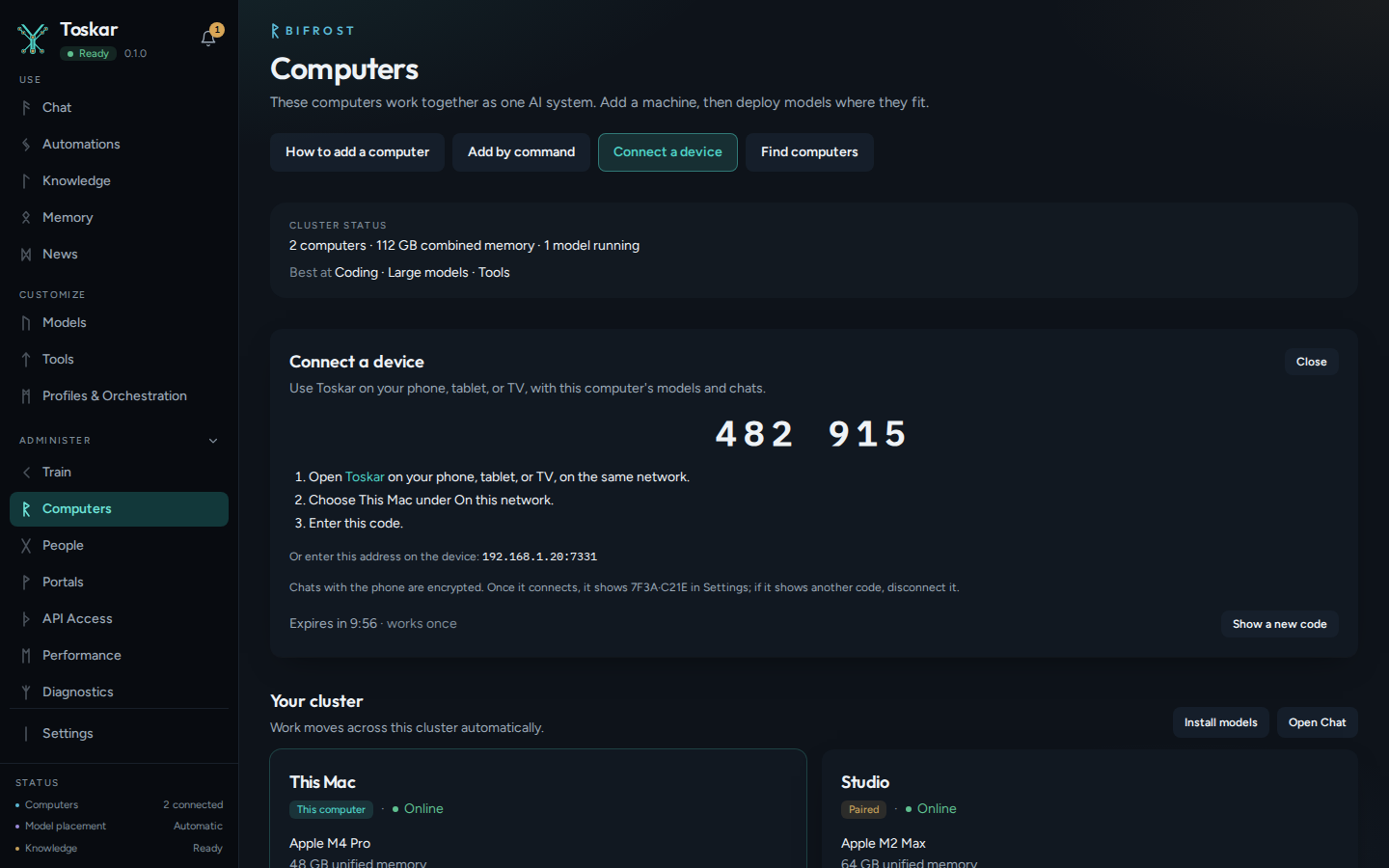
VS Code then uses HTTPS, and trusts only that computer's certificate. The model picker works only when an Admin or the Owner showed the code. With a Member's code, @toskar works and the picker doesn't.
What leaves this computer
- Your questions and code go to the computer that runs Toskar, which is this one unless you connected another.
- Copilot Chat is GitHub's product and stays signed in to GitHub. It may use GitHub's services for its own features, such as naming a chat, so check GitHub's terms if that matters for your work.
- @toskar has the same tools as any chat with that profile. If web search is on, it can search the web. See Tools, permissions, and connected services.
Settings
| Setting | Default | What it does |
|---|---|---|
toskar.url | http://127.0.0.1:7331 | Where Toskar runs. |
toskar.chatModel | Empty | The model @toskar answers with. Empty lets Toskar choose. |
toskar.profile | Empty | The profile @toskar answers as. Empty uses your default. |
Troubleshooting
| What you see | What to do |
|---|---|
| Ask Toskar about This isn't in the menu, and VS Code says the folder isn't trusted | Choose Manage in the banner and trust the folder, if it's yours. Projects you downloaded can change settings such as toskar.url, so the extension stays off in them. |
| Your model isn't in the picker | Check that Toskar is running and has a chat model installed. Then run Toskar: Refresh Models, and look under Manage Models. |
| A model on another computer isn't in the picker | The picker lists only models installed on the computer you connected to. If you used a Member's code, connect again with a code from an Admin or the Owner. |
| An answer in Agent mode ignores your files or tools | Try a larger model that can use tools. Small models often can't manage these tasks. |
These pages describe Toskar 1.13.0. Download 1.13.0 and its release notes ↗ · Need help? Report a bug or request a feature ↗