
Documentation / 1.13.0
Tools, permissions, and connected services
Choose what Toskar may do besides answering, such as searching the web, reading and writing files, or running code, and when it asks you first.
Profiles control which tools a model may use. Turning on a capability allows its tools. In advanced mode, each tool has a permission: Always allow runs it, Ask each time and Ask once per session ask in chat first, and Deny never runs it. Settings sets the defaults for the terminal, file writes, and Git. A tool turned off on the Tools screen cannot run anywhere.
The Tools page has three tabs. Your tools lists every tool, built in or added, with search and filters, and turning one off keeps it out of every chat. Add more connects services and adds tool sources, and Images and video sets up making images and clips. How it works explains that tools are built in or added, and that each profile chooses which tools its chats may use.
Internet searches DuckDuckGo and reads public pages. Files finds, reads, and writes workspace files. Terminal runs commands. Git inspects a repository, commits, and pushes. Files you can download are made with files.create, which writes only to Toskar's own file store. After an answer reads a web page or a file, a tool that changes something asks first even when the profile allows it, because retrieved content is data, not instructions. Text on a page or in a file that gives orders to an AI, such as “ignore your instructions”, is left out before the model reads it.
Each message is offered only the tools it needs: web search for current questions, files for a file or folder, the terminal for “run” or “install”, Git for “commit”. A plain question gets no tools. The model cannot call a tool it was not offered. How many tool calls a message may make depends on effort: 3 on Fast, 10 on Balanced, and 16 on Thorough.
Connected services add tools for GitHub, Home Assistant, email, and your calendar. Connect them on the Tools page, on the Add more tab under Connected services, with a token. For email and calendar, give your mail server, CalDAV address, and an app password from your provider (Fastmail, iCloud, Proton Mail Bridge, Nextcloud, or your own server; Gmail and Outlook if they allow app passwords). Then ask "Anything from Sam this week?" or "Am I free Thursday afternoon?"; Toskar asks before sending, archiving, or changing an event; Toskar checks it, stores it apart from the database, and adds it only when a tool runs, so it is never shown to the model. Reading is allowed and changes ask first unless a profile says otherwise.
MCP servers add more tools. On the Tools page, the Add more tab's Add tools offers a gallery of servers, servers already set up in your other apps, pasted configuration, or a custom server. Tool sources lists each server, its tools, its log, and a Sign in action for servers that sign in with a browser. Other AI apps can use Toskar too: API Access → Use Toskar in other AI apps shows what to paste into Claude Desktop, Claude Code, Cursor, VS Code, and other apps.
Ask for a Word document, a PDF, or a spreadsheet and Toskar makes it, ready to download: documents and PDFs from formatted text with headings, lists, and tables, and spreadsheets with several sheets and formulas. Attach a spreadsheet and ask about it, such as "What is the total by region?", and Toskar reads the whole file, not just the part that fits in the prompt.
In advanced mode, the Tools page shows each tool's level (1 is low risk on this computer, 4 runs commands or code), what it returns, its time limit, and whether it is ready. It also lists recent calls: what each was about, how it was allowed, and how it ended.
Ask Toskar to calculate, analyze, or chart something, such as "Plot monthly sales from sales.xlsx", and it can write and run Python in a sandbox: it has no internet, sees only the files from the chat it is given, and stops after 90 seconds. Charts and files it makes are attached to the answer. It asks before running unless the profile allows it, and the first run installs Python with numpy, pandas, and matplotlib. On macOS it uses the built-in sandbox; on Linux it needs bubblewrap; on Windows it is not available yet.
For pages that need clicking or typing, Toskar can use a browser: "Go to the library's site and find this week's events". It runs the Chrome, Edge, Chromium, or Brave already on your computer in a fresh, separate profile, never your own sign-ins, and it can't reach anything on your own network. It asks before clicking, typing, or downloading, never types passwords or payment details, and can attach a screenshot so you see what it sees.
Ask about places, such as "Coffee near the Juneau library", "How far is the airport from downtown?", or "Walking directions from the ferry terminal to the capitol", and Toskar looks them up with OpenStreetMap: names, addresses, opening hours, distances in your units, and turn-by-turn directions. Each lookup appears in What left this computer.
Attach a voice memo or recording and ask what it says, and Toskar transcribes it on this computer. Answers have a Read aloud button, and you can ask for something to be read aloud as an audio file. Audio plays right in the chat. The first time, Toskar installs speech and downloads a voice or speech model; after that it works offline.
Toskar can make images on this computer, and change them: ask for "a watercolor of a lighthouse at dusk", or attach a photo and ask to "make it night". Set it up once, from the chat when you first ask for an image or from the Tools page's Images and video tab: it recommends a model for your computer (a 5.2 GB download for most) and shows the download as it goes. After that, images are made offline, and nothing is sent anywhere. It works on Macs with Apple silicon; on Linux and Windows it runs on the processor, which is much slower. With a paired computer that has it set up, such as a Mac Studio, a laptop without it can ask for images too: the work runs there, and Diagnostics shows which computer can run what.
Toskar can make short video clips too: ask for "a short video of waves rolling onto a beach", or attach a photo and ask to bring it to life. Set it up once, from the chat or the Tools page's Images and video tab (an 8.5 GB download, for computers with 16 GB of memory or more). A clip of a few seconds takes several minutes, and it plays right in the chat.
What you need
- An Admin account: only an Admin opens Tools and Profiles (People).
- For a tool from an MCP server, sometimes a program such as Node.js or uv, or a sign-in to the service. Adding it says which.
See your tools
- Open Tools.
- Your tools lists every tool, built in or added. Search, or choose Built-in, Added, or Disabled to narrow the list.
- Choose a tool to see its details, then Disable to keep it out of every chat, whatever a profile allows.
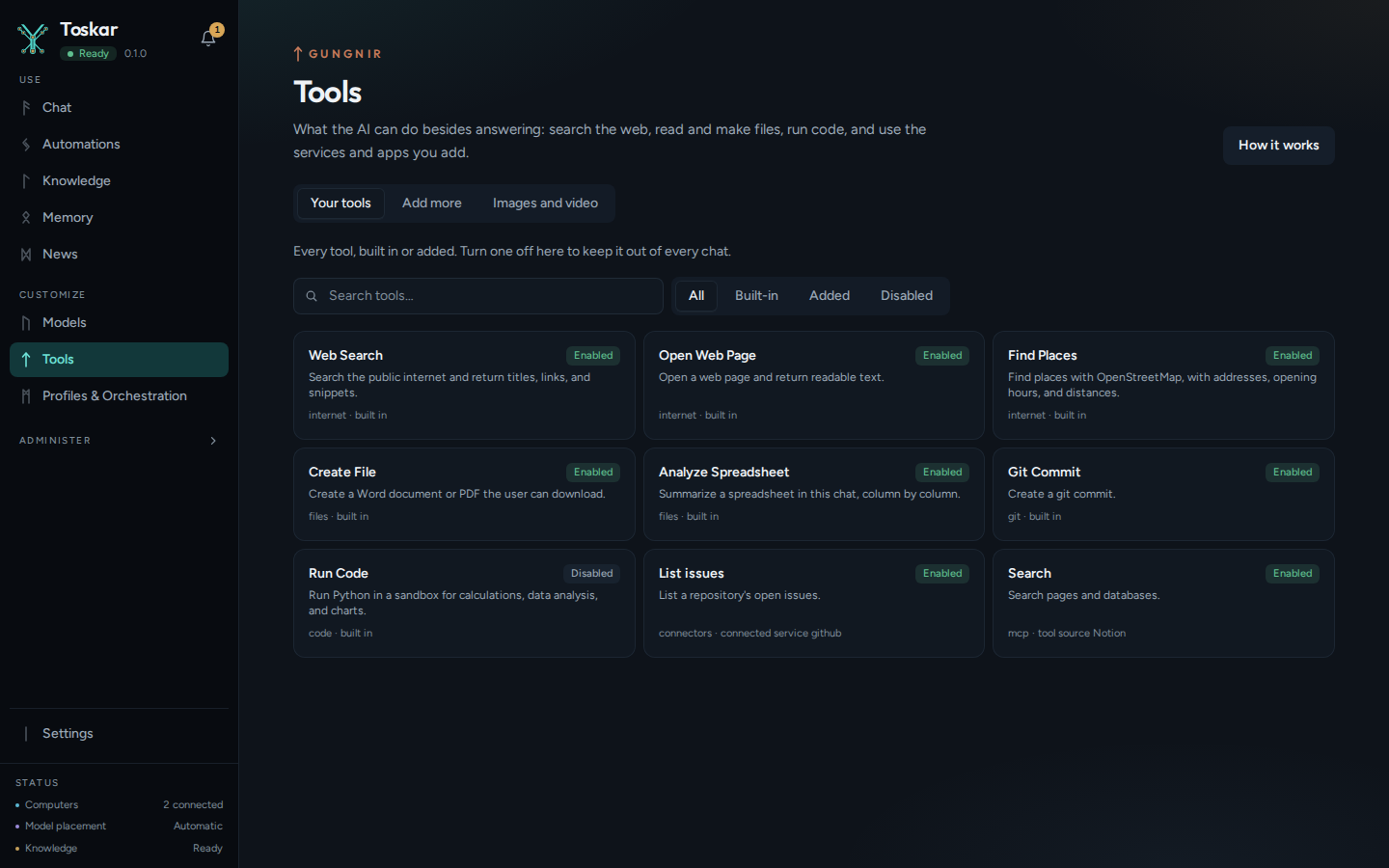
Each message is offered only the tools it needs: web search for current questions, files when a message names a file, the terminal for "run" or "install". A plain question gets none, and the model can't call a tool it wasn't offered. How many tool calls a message may make depends on effort: 3 on Fast, 10 on Balanced, and 16 on Thorough.
Choose when a tool asks first
A profile decides which tools its chats may use (Profiles). Turning on a capability, such as Files or Run code, allows its tools. In advanced mode, each tool has its own permission:
| Permission | What happens |
|---|---|
| Always allow | It runs without asking |
| Ask each time | Chat asks before every run |
| Ask once per session | Chat asks the first time, then lets it run for the rest of the chat |
| Deny | It never runs |
Tools that only read, such as web search, usually run without asking. Tools that change something, such as writing a file or making a Git commit, ask first. Settings sets the defaults for the terminal, file writes, and Git.
Answer when a tool asks
When a tool asks first, chat shows what it wants to do and why, and waits.
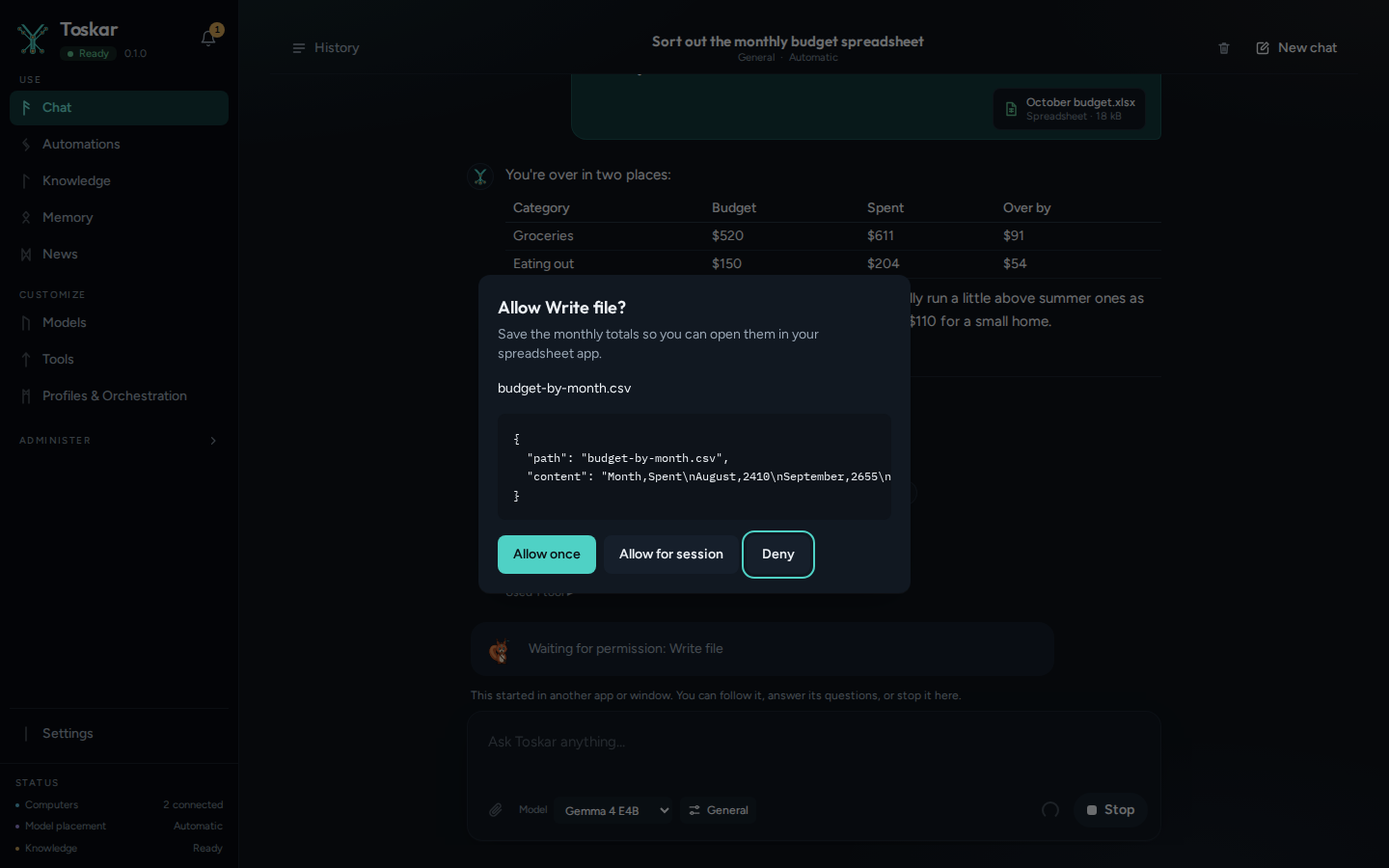
- Read what the tool will do, such as the file it will save or the command it will run.
- Choose Allow once to let it run this time, Allow for session to let that tool run for the rest of this chat, or Deny.
Some things ask every time, even after Allow for session: a command that can't be undone, such as deleting files, and any change right after the chat read a web page or a file from outside. What a page or file says is data, not instructions, so it can't approve anything on your behalf.
Tip: A chat in another app, such as the terminal or the desktop app, asks in whichever app you have open. The first answer counts, and the others put the question away.
Add tools from an MCP server
MCP is a common way for apps to offer tools to an AI. Toskar can use tools from MCP servers, such as ones for Notion, Linear, a database, or a folder.
- Open Tools, then Add more, then Add tools.
- Choose a way in. Gallery has ready-made servers. Paste takes whatever a server's instructions say. From your other apps reuses servers you set up elsewhere. Custom takes a command or a web address.
- Answer what it asks, such as a folder, a key, or a sign-in.
- Toskar connects and says what it found, such as "ready with 14 tools: 10 that read, and 4 that change things and ask you first".
Nothing is saved if the server can't be reached, and the message says what to do, such as installing Node.js. Keys and tokens are kept apart from Toskar's database and are never shown to the model. Tool sources, on the Add more tab, lists each server with its tools, its log, and a Sign in action for services that need one.
Use Toskar from other AI apps
Toskar is an MCP server too, so apps such as Claude Desktop, Cursor, and VS Code can ask your local AI and search your connected knowledge. API Access, under Use Toskar in other AI apps, shows what to paste into each. The local AI only uses tools that read when another app asks it. Here are the tools Toskar offers:
curl -s http://127.0.0.1:7331/mcp \
  -H "Content-Type: application/json" \
  -H "Accept: application/json, text/event-stream" \
  -d '{"jsonrpc": "2.0", "id": 1, "method": "tools/list"}'
You’ll see something like:
{…"name":"ask_local_ai"…"name":"list_local_models"…"name":"search_my_knowledge"…}Limits
- Run code uses the built-in sandbox on macOS, and needs bubblewrap on Linux. It isn't available on Windows yet.
- A tool from an MCP server on the web reaches that service. Each call shows in Settings, under What left this computer.
- Small models sometimes pick the wrong tool, or answer without one. A larger model does better.
Troubleshooting
| What you see | What to do |
|---|---|
| A tool never runs | Check that it's on in Tools, and allowed in the chat's profile |
| Chat asks every time, even after Allow for session | The command can't be undone, or the chat just read something from outside. That always asks |
| An MCP server says it needs Node.js or uv | Install the program it names, then add the server again |
| A server's card says Sign in to use it | Choose Sign in on its card, and finish the sign-in in the browser window |
| The answer didn't use a tool you expected | Name the tool or its subject in your message, or raise effort for more tool calls |
These pages describe Toskar 1.13.0. Download 1.13.0 and its release notes ↗ · Need help? Report a bug or request a feature ↗