
Documentation / 1.13.0
Connect another app through the API
Connect your own apps, scripts, and CI jobs to Toskar: its OpenAI-compatible API, API keys, the SDKs, and toskarctl.
Open API Access to copy the endpoint and run Test API. The default base URL is http://127.0.0.1:7331/v1. Use GET /v1/models to find a model ID, such as auto or a profile, then POST /v1/chat/completions. The API gets the same assistant as chat: Auto, web look-ups, connected services, answer checks, personalization, and specialized AIs. It is an OpenAI-compatible subset, not every hosted API feature.
With local network access off, the default endpoint on this computer needs no API key. With it on, an app or script on another device needs a key for every request; apps on this computer still need none, and people sign in with their password in a browser instead. Create a named key in API Access and copy its secret when it is shown; you can rotate or revoke it there. Send it as Authorization: Bearer YOUR_KEY.
Each key has permissions a request can only narrow: whether it may use memories and connected knowledge (never, on request, or always), which tools (the profile's, read-only, or none), and whether it may choose where it runs. API requests use memories only when they ask, unless the key says always. A request can ask for JSON with response_format, and Toskar checks and repairs the result.
A request that names a model gets the room it needs. When its messages and answer are more than the model's context window on this computer, Toskar starts the model again with a bigger one, up to what the model was made for, if it still fits. Coding tools that send a lot at once can ask up front, with toskar.context_window set to the tokens they need. When no size fits, the request fails with CONTEXT_TOO_LONG, and nothing is cut off.
Coding agents and editors that run their own tools can use a model directly. Name the model as raw: and its ID, such as raw:qwen2.5-7b-q4, and the request goes straight to the model with the agent's tools, and the model's tool calls come back to the agent. It skips Toskar's assistant: no memories, knowledge, look-ups, or answer checks. A request from this computer can do this without a key. For another device, an Admin turns on Drive models directly, for coding agents, in that key's permissions in API Access. GET /v1/models lists the raw: models a key may use. Agents built for Anthropic's format work too: point them at Toskar's address, such as http://127.0.0.1:7331, and set their model to the model's ID. They reach POST /v1/messages, which works the same way. So do agents built for OpenAI's Responses format, through POST /v1/responses: send the whole conversation each time, since Toskar doesn't keep earlier responses.
toskarctl connect sets these up for you. Run toskarctl connect claude-code, codex, opencode, or aider to print the settings that agent needs, or add --write to save them: for Claude Code and OpenCode in the project folder you're in, and for Codex as a toskar profile you run with codex --profile toskar. Your agent's usual settings stay as they were. Pick the model with --model, or let it choose the best installed model for coding. For editors, toskarctl connect continue, cline, roo-code, zed, jetbrains, or copilot prints what to enter in that editor's settings, since they keep it there. An agent with many tools, such as one with MCP servers, works too. When its tools would take more than a quarter of what the model reads at once, the model gets the ones the request most likely needs, and searches for the rest as it goes. The agent never notices.
The Toskar extension for VS Code lists Toskar's models in Copilot Chat's model picker and adds @toskar, Toskar's assistant, to Copilot Chat. See Use Toskar in VS Code.
For another computer, use the LAN endpoint shown in API Access rather than localhost. Keep LAN access on a trusted network; the displayed HTTP endpoint does not itself provide public-internet TLS protection.
Apps that speak MCP, such as Claude Desktop, Claude Code, Cursor, and VS Code, can ask your local AI questions, list its models, and search your connected knowledge. API Access → Use Toskar in other AI apps shows what to paste into each.
curl http://127.0.0.1:7331/v1/models

curl http://127.0.0.1:7331/v1/chat/completions \
  -H "Content-Type: application/json" \
  -d '{"model":"MODEL_ID_FROM_LIST","messages":[{"role":"user","content":"Hello"}],"stream":false}'
What you need
Find your endpoint
- Open API Access.
- Under Service, copy the Endpoint. On this computer it's
http://localhost:7331/v1. - Choose Test API. API service then says Running.
Any app or library that speaks OpenAI's Chat Completions can use that address. Ask which models it may use:
curl -s http://127.0.0.1:7331/v1/modelsYou’ll see something like:
{"data":[{"id":"auto"…"profile:general-assistant"…}],"object":"list"}auto lets Toskar pick a model for each request. profile: and a profile's id answers as that profile (Profiles), and a model's own id uses that model. Then ask a question:
curl -s http://127.0.0.1:7331/v1/chat/completions \
  -H "Content-Type: application/json" \
  -d '{"model": "profile:general-assistant", "messages": [{"role": "user", "content": "Plan a three-day trip to Juneau"}]}'
You’ll see something like:
{…"choices":[{…"message":{…"content":"…Juneau…"…}…}]…}The answer comes from Toskar's assistant, as in chat: Auto, web look-ups, connected services, and answer checks. Add "stream": true to get it as it's written. It's a subset of OpenAI's API, not every feature of a hosted one.
Use an API key
On this computer, with local network access off, no key is needed. An app on another device needs a key with every request, sent as Authorization: Bearer and the key.
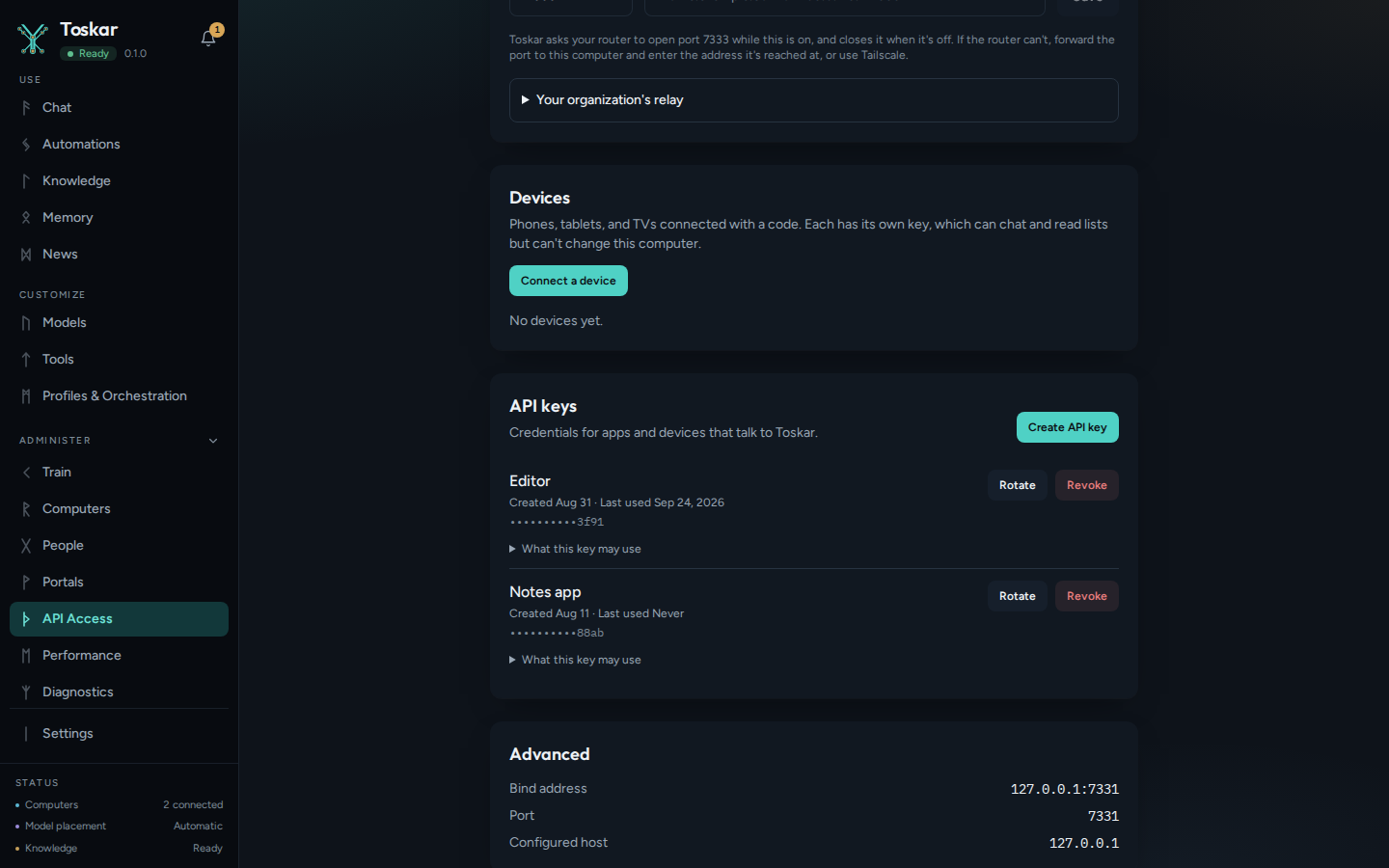
- Open API Access, and under API keys choose Create API key.
- Give it a name you'll recognize, such as the app that uses it, and choose Create key.
- Copy the secret straight away. It isn't shown again.
- Open What this key may use to narrow what it can do.
| What this key may use | Choices | What it means |
|---|---|---|
| Answers with | The profile each request names, or one profile | Pins the key to one profile, or lets each request choose |
| Your memories | Never, When the request asks, or Always | A request uses them only when it asks, unless the key says Always |
| Connected knowledge | Never, When the request asks, or Always | The same, for connected knowledge |
| Tools | What the profile allows, Read-only tools, or No tools | What the assistant may do while it answers |
| Reaches | Everything its person may, or Chat only, for CI jobs | Chat only answers through the OpenAI-compatible API, with no memories, knowledge, or tools |
| May choose where requests run | On or off | Whether a request may choose which computer answers |
| Drive models directly, for coding agents | On or off | Whether the key may use raw: models, for agents that run their own tools |
A request can ask for less than its key allows, never more. Over the network these limits always apply. On this computer, which needs no key, they apply when an app sends this key.
Tip: For a CI job, choose For a CI job: chat only when you make the key. That key only asks: no memories, knowledge, or tools, whatever the job sends.
Use an SDK
The SDKs talk to Toskar's own API, with streaming, typed errors, and retries. On this computer they need no setup. Elsewhere, set TOSKAR_URL and TOSKAR_API_KEY.
| Language | Install |
|---|---|
| Python | pip install toskar |
| TypeScript and JavaScript | npm install toskar |
| Go | go get github.com/yeixio/toskar-sdks/go |
from toskar import Toskar

with Toskar() as toskar:
    for event in toskar.chat_stream("Plan a three-day trip to Juneau"):
        if event.type == "token":
            print(event.content, end="", flush=True)
    print()
You’ll see something like:
…Juneau…import { Toskar } from 'toskar'
const toskar = new Toskar()
for await (const event of toskar.chatStream({ message: 'Plan a three-day trip to Juneau' })) {
if (event.type === 'token') process.stdout.write(event.content)
}
console.log()
You’ll see something like:
…Juneau…package main
import (
"context"
"fmt"
"log"
toskar "github.com/yeixio/toskar-sdks/go"
"github.com/yeixio/toskar-sdks/go/api"
)
func main() {
c, err := toskar.New()
if err != nil {
log.Fatal(err)
}
for e, err := range c.ChatStream(context.Background(), api.ChatJSONRequestBody{Message: "Plan a three-day trip to Juneau"}) {
if err != nil {
log.Fatal(err)
}
if e.Type == "token" {
fmt.Print(e.Content)
}
}
fmt.Println()
}
You’ll see something like:
…Juneau…Each SDK release is built for a version of Toskar's client contract, and sends it with every request. Toskar refuses a client built for another major version with CONTRACT_MISMATCH. A Toskar older than the SDK may lack its newest fields, so update Toskar first. To see the contract a Toskar speaks:
curl -s http://127.0.0.1:7331/api/v1/versionYou’ll see something like:
{"version":"…"…"contract":{"version":"…","major":1}}More examples, each checked in CI, are in the examples folder ↗: chat, the events stream, and pairing in each SDK, and curl scripts for the models, a chat, the events stream, and this computer's hardware.
Use it from a script
toskarctl ask asks one question and prints the answer, for scripts and CI. Text piped in is sent as data to work on, apart from the question, and the model is told to follow only the question. Memory, knowledge, and tools are off.
printf 'error: missing semicolon on line 12\n' | toskarctl ask "What failed?"You’ll see something like:
…--json-schema with a JSON Schema file answers with JSON that fits it, for a later step to read. Where the input is an open pipe that never ends, such as some job runners, add < /dev/null.
Use it in CI
A CI job can ask Toskar as one of its steps, such as summarizing a bug report or reading a failing log. It runs on your own runners and models, so issue text, code, and logs never go to a hosted AI. In GitHub Actions, the Ask Toskar action ↗ does it in one step:
- uses: yeixio/toskar-action@v1
  id: toskar
  with:
    prompt: What's the first real error in this log, and its likely cause?
    input-file: build.log
The answer is the step's answer output, for a later step to use. Without a url, the action starts Toskar on the runner and installs a small model, cached between runs. With url and api-key, it asks a Toskar the runner can reach. For other CI systems, see Toskar in CI ↗.
Limits
- The API is an OpenAI-compatible subset, not every feature of a hosted API.
- A
raw:model skips Toskar's assistant: no memories, knowledge, look-ups, or answer checks. - The local network endpoint is plain HTTP. Keep local network access on a network you trust, or use Reach Toskar away from home.
- A small model on a runner with no graphics card answers much more slowly than one on a computer with one.
Troubleshooting
| What you see | What to do |
|---|---|
An app on another device gets UNAUTHORIZED: "This Toskar needs an API key" | Send a key as Authorization: Bearer and the key, or check that it hasn't been revoked |
| "No model is installed yet" | Install one in Models, or name a model or profile that has one |
CONTEXT_TOO_LONG | The request is more than the model can read at once, even in a bigger window. Send less, or use a model made for longer text |
CONTRACT_MISMATCH | The SDK was built for another major version of Toskar. Update Toskar and the SDK to releases that match |
| An app on another device can't connect | Turn on local network access in API Access, and use the address it shows, not 127.0.0.1 |
These pages describe Toskar 1.13.0. Download 1.13.0 and its release notes ↗ · Need help? Report a bug or request a feature ↗