
Documentation / 1.14.1
Talk with Toskar out loud
Have a spoken conversation with Toskar: you talk, it answers in a natural voice, and you can talk over it to stop it.
Voice mode is a conversation out loud, like a phone call. You speak, Toskar hears when you've stopped, and it answers in a voice a sentence at a time, so the first words play while the rest is still being written.
Everything runs on your own computers: hearing what you said, the answer, and the voice. Nothing is sent to an outside service. The conversation is kept in your chats as Voice chat.
What you need
- Toskar 1.14 or later, from outside the Mac App Store. Voice mode runs speech on this computer, which that build can't install.
- A chat model, as Choose and manage models explains.
- A microphone and speakers or headphones. Headphones keep the answer from sounding like you talking over it.
- The Toskar app, or a web address the browser trusts with a microphone: Toskar on this computer, at localhost, or at its https:// address from another device.
- Your role allowed to use voice, which an Admin sets in People.
- A download the first time: speech for hearing you, and about 120 MB for the natural voice. After that it works offline.
Start a conversation
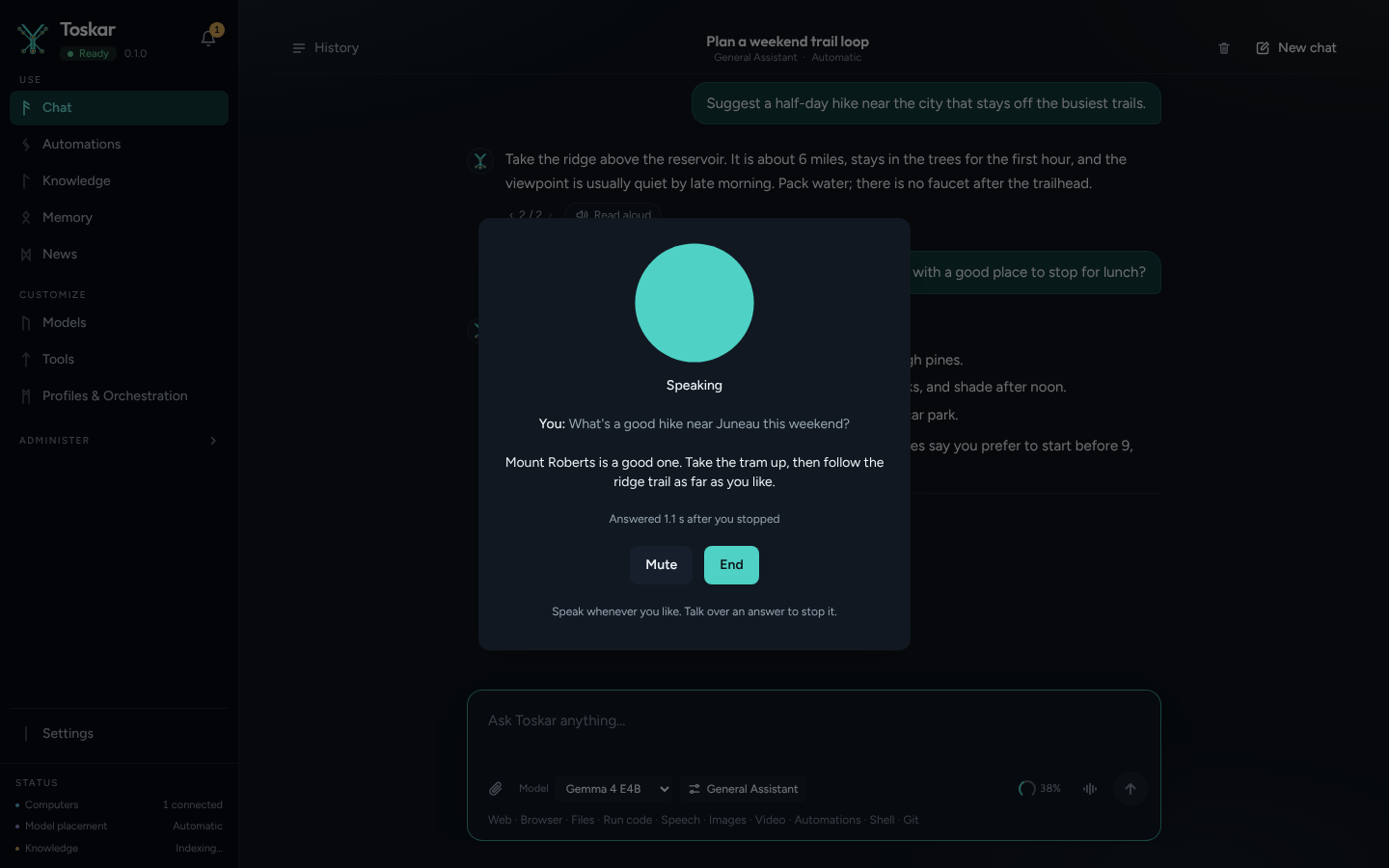
- In a chat, choose Talk, the button with sound bars beside Send.
- When your browser asks, allow Toskar to use the microphone. In the Toskar app on a Mac, macOS asks the first time.
- Wait for Listening, then speak as you would to a person.
- Pause when you're done. Toskar answers out loud, and the words appear as it speaks.
- To stop an answer, just start talking. Toskar stops and listens.
- Choose Mute to turn the microphone off for a moment, and End when you're done.
The voice
Toskar answers in Kokoro, a natural-sounding voice, in English, Spanish, French, Italian, and Portuguese. Other languages, such as German, Japanese, Korean, and Chinese, use Piper, the voice Read aloud uses. The first time, Kokoro downloads in the background, and Piper speaks until it's ready.
Choose the voices
An Admin chooses the voice for each language in Settings, under Voice. Pick one from the list, or leave it on Automatic. Preview plays a sentence in that language. The choice applies to voice mode, answers read aloud on your phone and in the car, and the doorbell.
Kitten TTS 2 mini adds more natural voices in 15 languages, including German, Korean, Russian, Dutch, and Hindi. To add it, choose Install next to it under Voice. It downloads its program and voices, about 1.5 GB, and takes a minute or two. It runs on the processor and uses about 1 GB of memory while it speaks, which it frees after 10 quiet minutes. Once it's installed, Automatic uses Kitten for the languages Kokoro doesn't speak. Its voices are Powered by KittenML, under the Apache-2.0 license. Installing it also sets up listening for voice mode, so the first conversation doesn't wait for downloads. Choose Remove to delete it, and those languages go back to Piper.
Voice also says what's still missing. Voice mode needs a chat model to answer with, and the doorbell needs a model that can see pictures. When none is installed, Voice names the one that fits this computer, with its size, and Install downloads it. An automation that looks at a camera offers the same when you choose the camera.
Answers in voice mode are short and spoken: a sentence or two, with no lists, tables, or links. Ask for more and Toskar goes on.
From your own app
Voice mode speaks OpenAI's Realtime protocol over a WebSocket at /api/v1/voice/realtime, so an app built for it needs only the address changed. A browser sends the API key as the subprotocol openai-insecure-api-key.<key>. The protocol's details are in docs/voice.md in Toskar's source.
Troubleshooting
- Talk isn't there: speech isn't set up on this computer yet, or your role doesn't allow voice. Attach a voice memo once to install speech, or ask an Admin.
- This page can't use a microphone: open Toskar at localhost on this computer, or at its https:// address from another device.
- Toskar isn't allowed to use the microphone: allow it in your browser's settings for this page, then start voice mode again.
- It stops answering by itself: the speakers' sound reached the microphone. Use headphones, or turn the volume down.
- The first answer is slow: speech and the voice are loading. Later answers start much sooner.
- Voice isn't in Settings: only an Admin sees it.
- A voice you chose isn't used: it was removed, or it can't read right now. Toskar uses the language's automatic voice instead.
These pages describe Toskar 1.14.1. Download 1.14.1 and its release notes ↗ · Need help? Report a bug or request a feature ↗