
Documentation / 1.14.1
Projects
Keep the chats for one piece of work together, with the instructions, files, and memory they share.
A project keeps related chats together with what they share: instructions, files, a default profile and model, and a memory of its own. Use one for a piece of work you come back to, such as a kitchen remodel, a class, or a website. A project is yours; other people on the same Toskar don't see it.
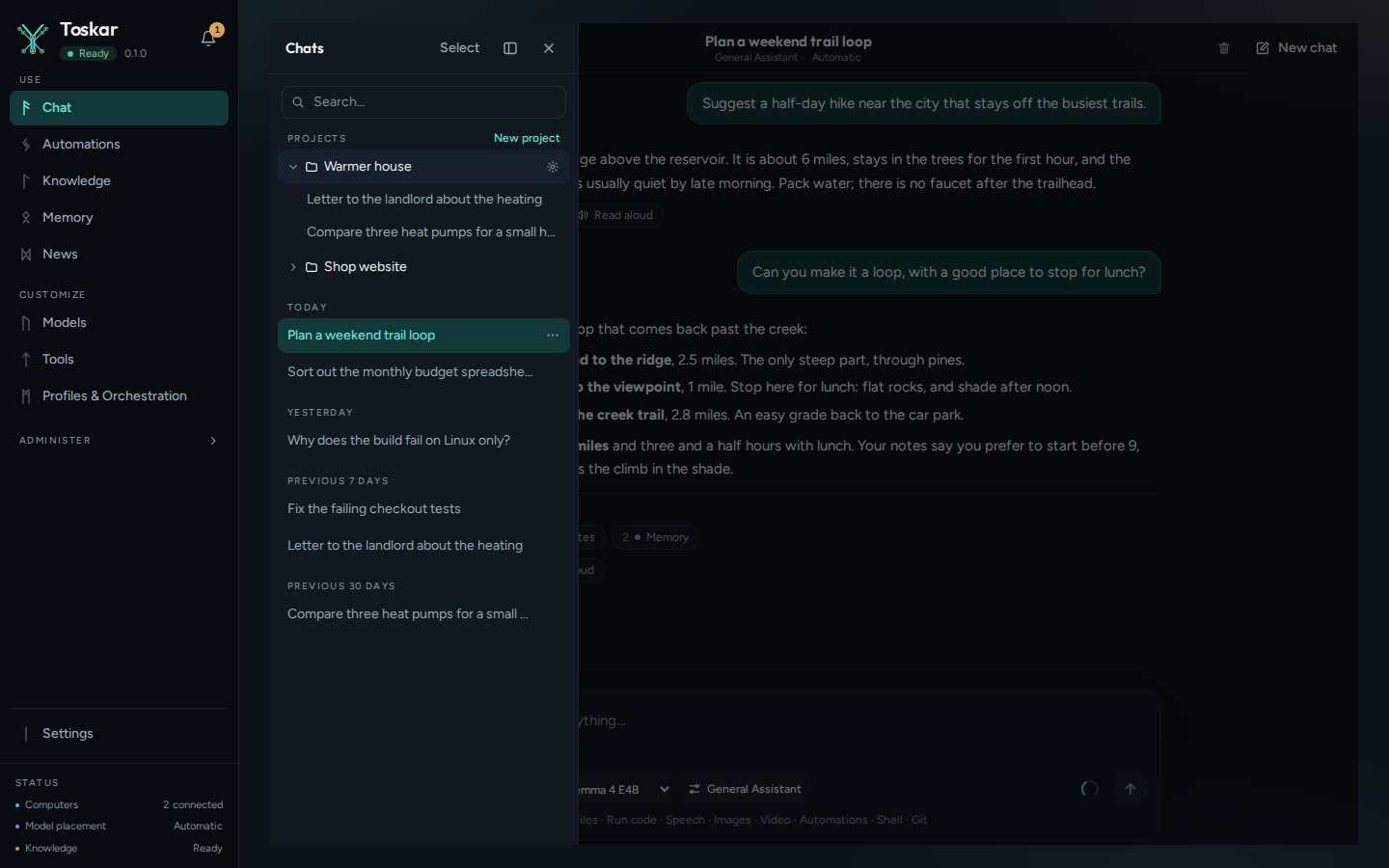
In Chat, open History. Your projects are listed above your chats. Choose a project to see its chats, or New project to make one. The button beside a project opens its page. A chat in a project is also listed with your other chats, by date.
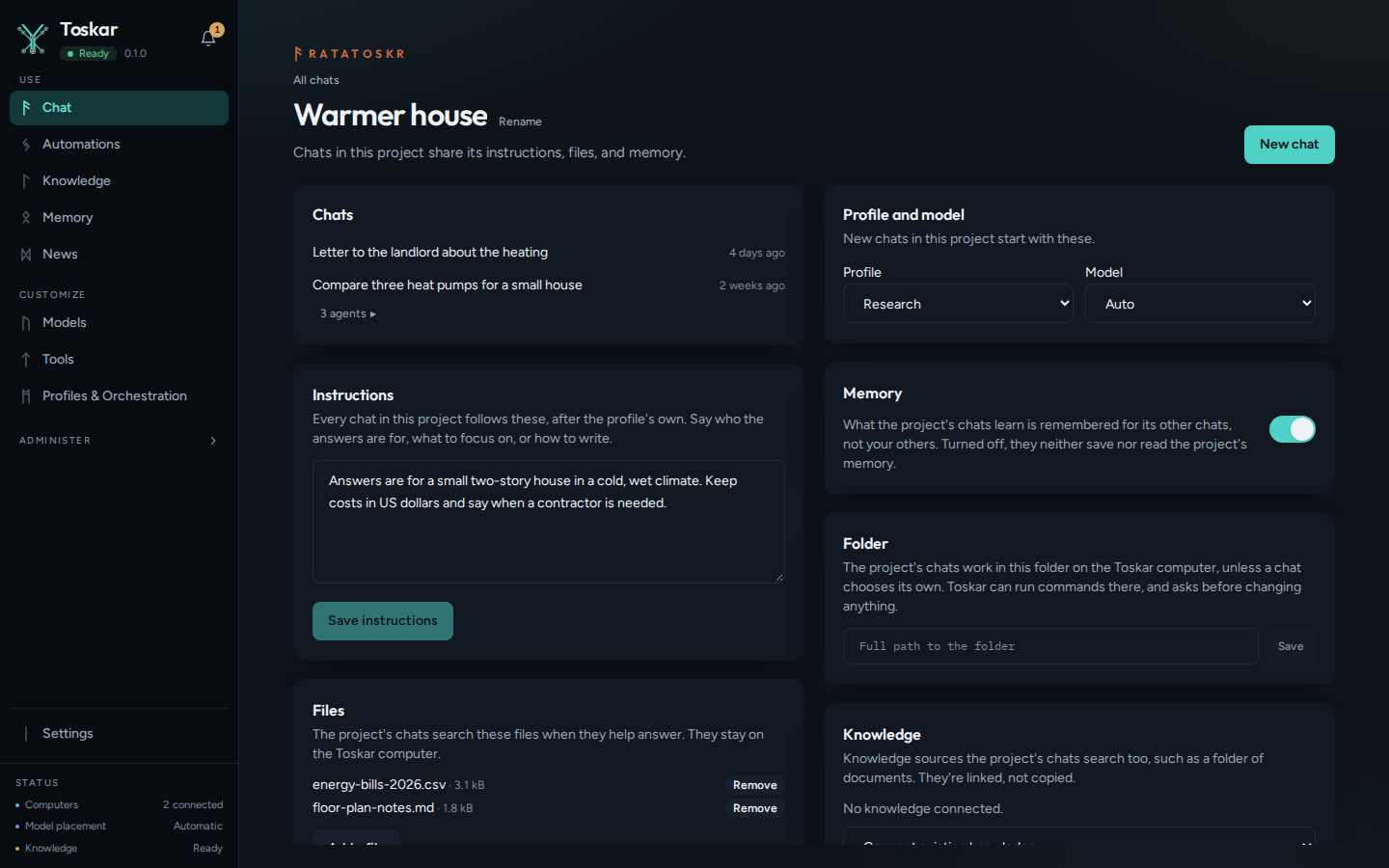
A project's page lists its chats. New chat starts a chat in the project. Instructions are followed by every chat in the project, after the profile's own, so say who the answers are for or how to write them. Files you add there are searched when they help answer, and stay on this computer. Members can also link sources from Knowledge, which are searched without being copied.
Profile and model set what a new chat in the project starts with; you can still change them in the chat. With Project memory on, what the project's chats learn is remembered for its other chats, not your others. Turn it off and they neither save nor read the project's memory. Your own memory still follows each chat's Memory switch. The Memory page lists a project's memories under its name, and Move to personal memory makes one yours everywhere.
An Admin can give a project a folder on this computer. Its chats work there, as a chat with its own folder does, unless a chat chooses another. In such a chat, the folder button says From the project and the folder's name.
A chat in a project says so under its title, with links to the project, Move to project, and Remove from project. To put any chat in a project, open its menu in History and choose Move to project, then pick a project or name a new one.
Delete project on its page deletes its files and what it remembered. Its chats move out of it and stay in your history, unless you tick the box to delete them too.
On your phone and tablet, the chat list shows your projects, and New chat in this project starts one there. The TV and the car continue a project's chats. Projects are made, changed, and deleted on the computer.
In the terminal, toskarctl projects lists your projects, and toskarctl chat --project starts or continues a chat in one (Use Toskar in the terminal).
What you need
- An installed model, as for any chat (Choose and manage models).
- Any account can make projects. Linking Knowledge needs a Member, and a folder needs an Admin (People).
Make a project
- Open Chat and choose History.
- Next to Projects, choose New project.
- Give it a name, such as Kitchen remodel, and choose Make project. Its page opens.
- Under Instructions, say who the answers are for or how to write them, and choose Save instructions.
- Choose New chat to start the first chat in the project.
A project's page
To open a project's page, point at it in History and choose the button beside its name, or choose its name above a chat in it.
| Part | What it does |
|---|---|
| Chats | The chats in the project, newest first. Choose one to open it |
| Instructions | Followed by every chat in the project, after the profile's own instructions and before your own style |
| Files | Searched when they help answer, and kept on the Toskar computer. Add a file adds one; Remove takes it out |
| Knowledge | Sources from the Knowledge page that the project's chats search too. They're linked, not copied (Members and up) |
| Folder | Where the project's chats work on the Toskar computer, unless a chat chooses its own (Admins) |
| Profile and model | What a new chat in the project starts with. Your default and Auto are the defaults |
| Memory | Project memory, on for a new project. Off, its chats neither save nor read the project's memory |
| Delete project | Deletes its files and what it remembered. Its chats stay in your history, unless you choose to delete them too |
Put a chat in a project
- In History, open the menu beside the chat.
- Choose Move to project.
- Pick a project, or type a name under New project to make one.
From its next message, the chat follows the project's instructions and searches its files. A chat in a project says so under its title.
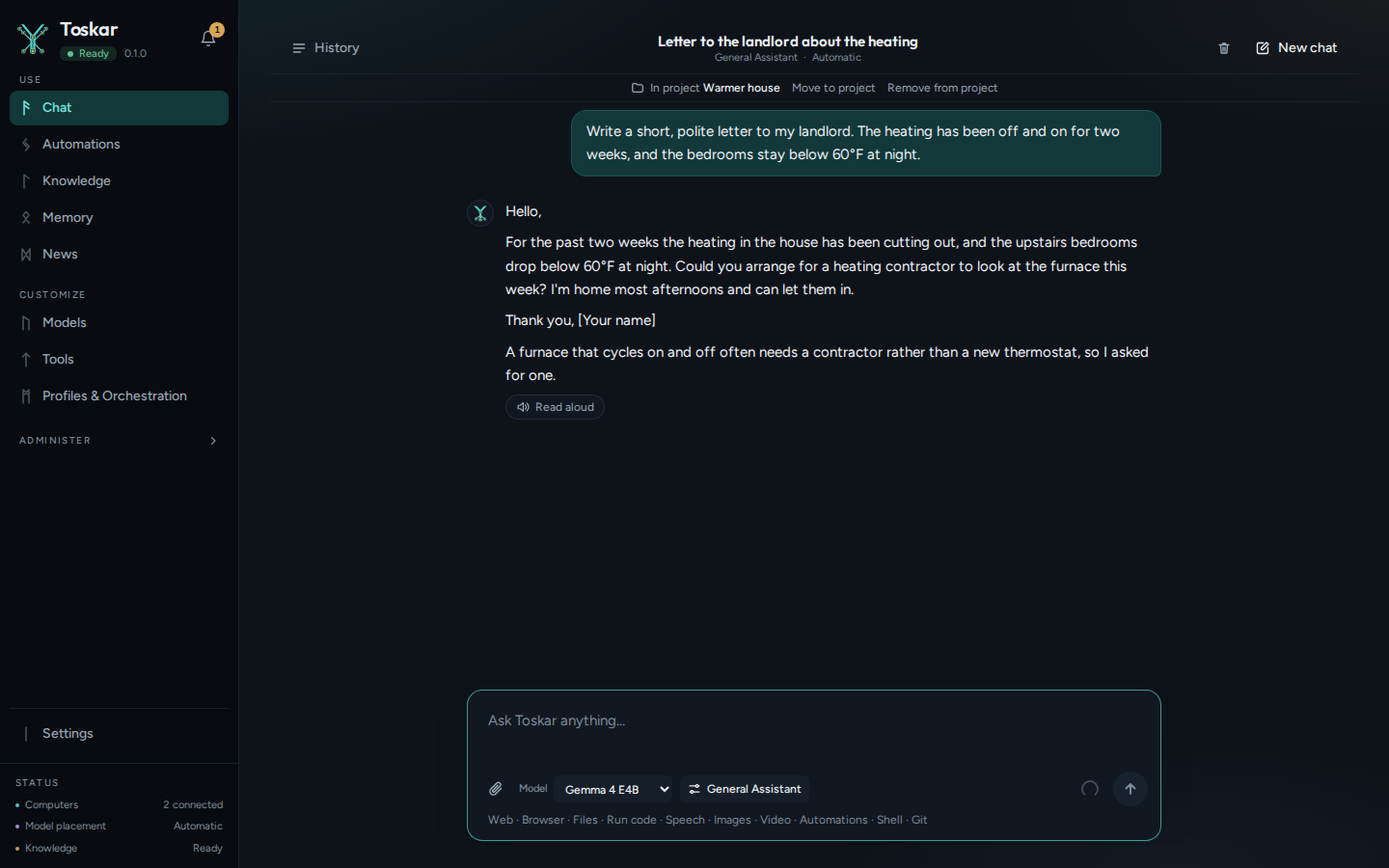
Remove from project takes the chat out, and it stays in your history. A chat is in one project at most.
What a project remembers
With Project memory on, what you tell a chat in the project to remember is kept for the project's chats, not your others. They still use your own memory. The Memory page lists each project's memories under its name, after your own.
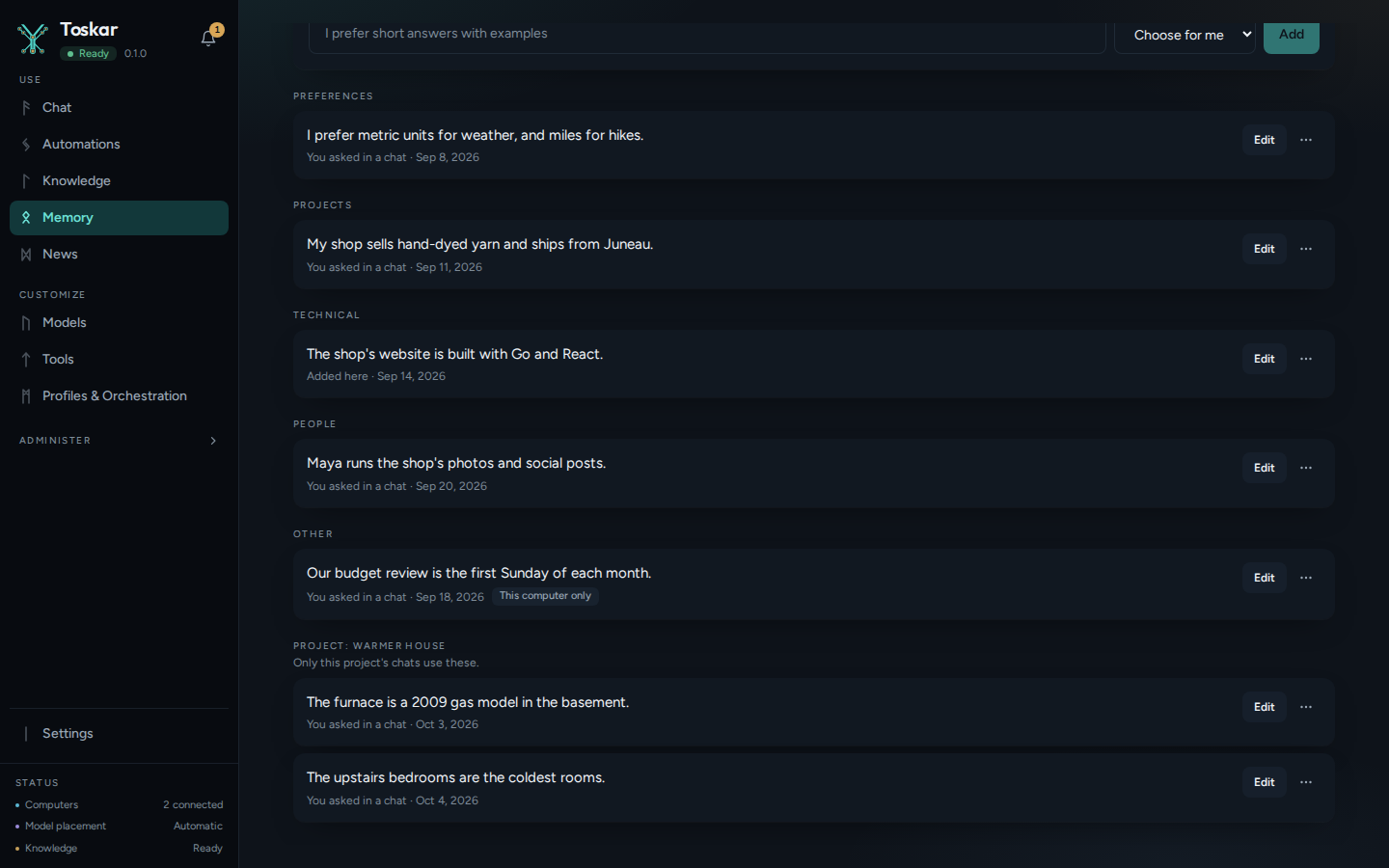
To use one of them in every chat, open its menu and choose Move to personal memory. If you already have the same memory, Toskar keeps yours and removes the project's copy.
On your phone, tablet, TV, and car
The Toskar apps list your projects and continue their chats (Toskar on your phone). You make, change, and delete projects on the computer.
- Phone and tablet: the chat list has a Projects section above Computer. Open a project to see its chats, or choose New chat in this project. A chat in a project says In project and the project's name.
- TV: Projects, beside New chat, lists your projects, so you can continue one of their chats.
- Car: Projects, under Ask Toskar, lists your projects, so you can continue one of their chats by voice.
With the API
Apps use /api/v1/projects (The API). Make a project with a name, and optionally instructions:
curl -s http://127.0.0.1:7331/api/v1/projects \
  -H "Content-Type: application/json" \
  -d '{"name": "Kitchen remodel", "instructions": "Answers are for a small kitchen in an old house. Keep costs in US dollars."}'
You’ll see something like:
{"id":"…","name":"Kitchen remodel","instructions":"Answers are for a small kitchen in an old house. Keep costs in US dollars.","memory_off":false,…"chat_count":0,…}List your projects, the most recently used first:
curl -s http://127.0.0.1:7331/api/v1/projectsYou’ll see something like:
[{"id":"…","name":"Kitchen remodel",…}]A new chat takes project_id to start in a project, and PATCH /api/v1/conversations/{id} with project_id moves a chat in, or out with an empty one. This finds the project's id by its name first:
project=$(toskarctl projects | grep "Kitchen remodel" | cut -d " " -f 1)
curl -s http://127.0.0.1:7331/api/v1/conversations \
  -H "Content-Type: application/json" \
  -d '{"title": "Pick a countertop", "project_id": "'"$project"'"}'
You’ll see something like:
{"id":"…","title":"Pick a countertop",…"project_id":"…",…}Then list the project's chats:
project=$(toskarctl projects | grep "Kitchen remodel" | cut -d " " -f 1)
curl -s "http://127.0.0.1:7331/api/v1/conversations?project_id=$project"
You’ll see something like:
[{"id":"…","title":"Pick a countertop",…"project_id":"…",…}]POST /api/v1/chat takes project_id too. Another person's project answers 404 PROJECT_NOT_FOUND.
From the terminal
toskarctl projects lists your projects, each with its id and how many chats it has. toskarctl chat --project starts a chat in one, by its name or id:
toskarctl projectsYou’ll see something like:
ID…NAME…CHATS
…Kitchen remodel…
toskarctl chat --project "Kitchen remodel" "Which countertops resist heat?"You’ll see something like:
…countertops…
Continue this chat: toskarctl chat --resume …
Limits
- A project belongs to the person who made it. Sharing a project with others isn't available yet.
- A chat is in one project at most.
- A project's folder is used only by chats on the web, desktop, and terminal, and only for an Admin.
- A memory can move from a project to your own memory, but not into a project.
Troubleshooting
| What you see | What to do |
|---|---|
| A chat doesn't follow the project's instructions | Check that the line under its title names the project. Instructions apply from the chat's next message |
| Folder isn't on the project's page | Only an Admin can set a project's folder |
| A chat outside the project doesn't remember something | It was learned in a project chat, so only that project's chats use it. On the Memory page, choose Move to personal memory |
toskarctl chat --project says two projects have that name | Use the project's id from toskarctl projects |
These pages describe Toskar 1.14.1. Download 1.14.1 and its release notes ↗ · Need help? Report a bug or request a feature ↗