
Automations: let Toskar check things for you
· The Toskar team · 6 min read
Some questions you ask over and over. Has the price dropped yet? Is it back in stock? What changed in the tools I use this week? Did that page change? You check, nothing's different, and you check again tomorrow.
Automations hand that job to Toskar. You say when to run, what to do, and when you want to hear about it. Toskar runs it on schedule in the background and keeps every result, and it only interrupts you when something's worth knowing.
Why use automations
- It runs on your computer. The model doing the work is yours. Your tasks, the results, and their history stay on your machines, and nothing goes to an AI company to do it.
- It tells you only what matters. A price watch can stay quiet until the price is under your number. A page watch can stay quiet until the page actually changes.
- It keeps going without you. Close the browser and it still runs, because Toskar keeps the schedule, not the web page.
- It knows what you know. Automations use your memories and connected knowledge the same way chat does.
- No per-task fees. It's your hardware, so a check every six hours costs the same as one a week.
How an automation works
Every automation has three parts. Open Automations in the sidebar and choose How it works to see them, with a few ideas to start from:
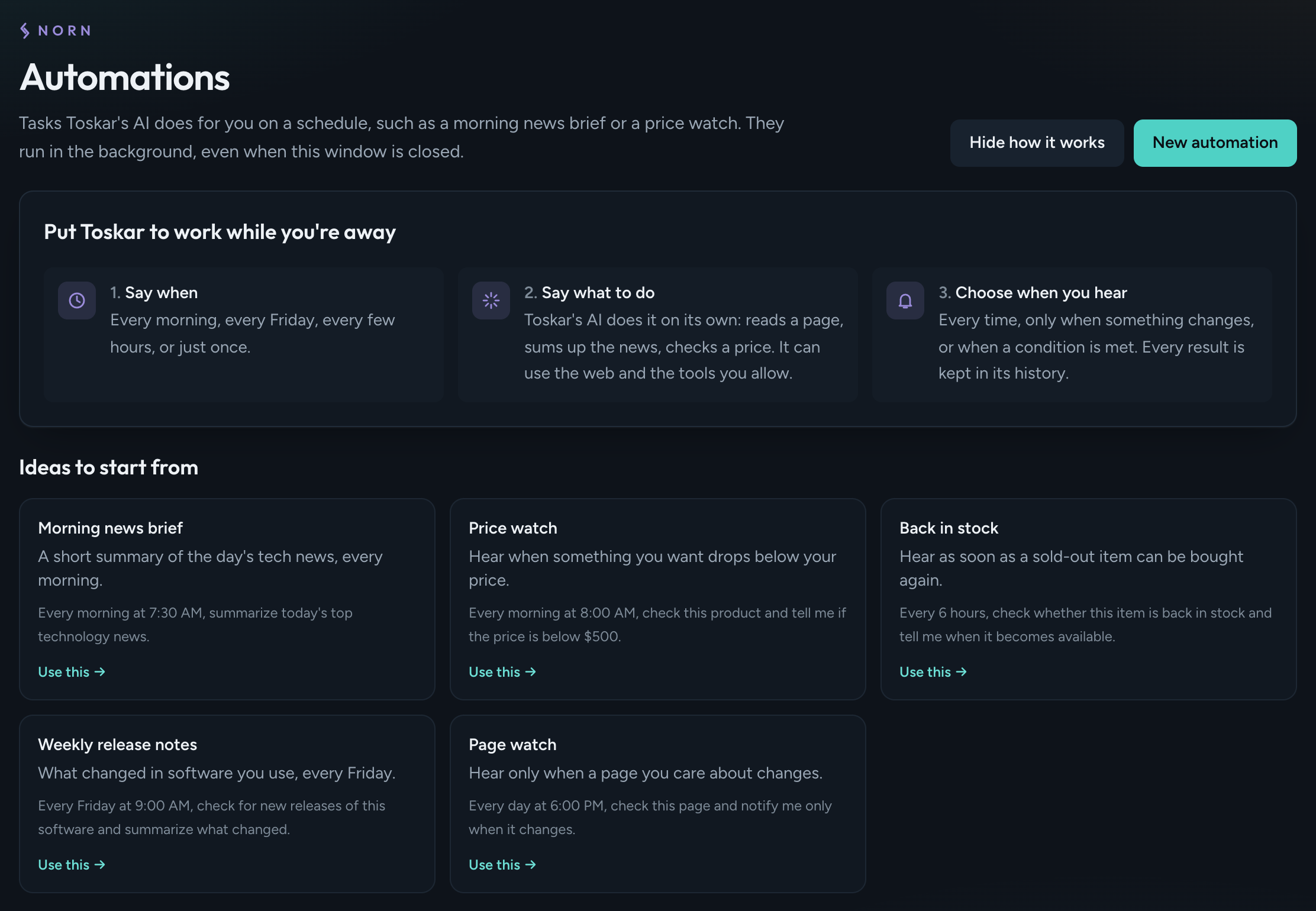
- When it runs: every morning, every Friday, every few hours, or just once.
- What it does: a plain-language task. Toskar's AI does it on its own: it can read a page, sum up the news, or check a price, using the web and the tools you allow.
- When you hear about it: every time, only when something changes, or only when a condition is met.
Step 1: Describe it
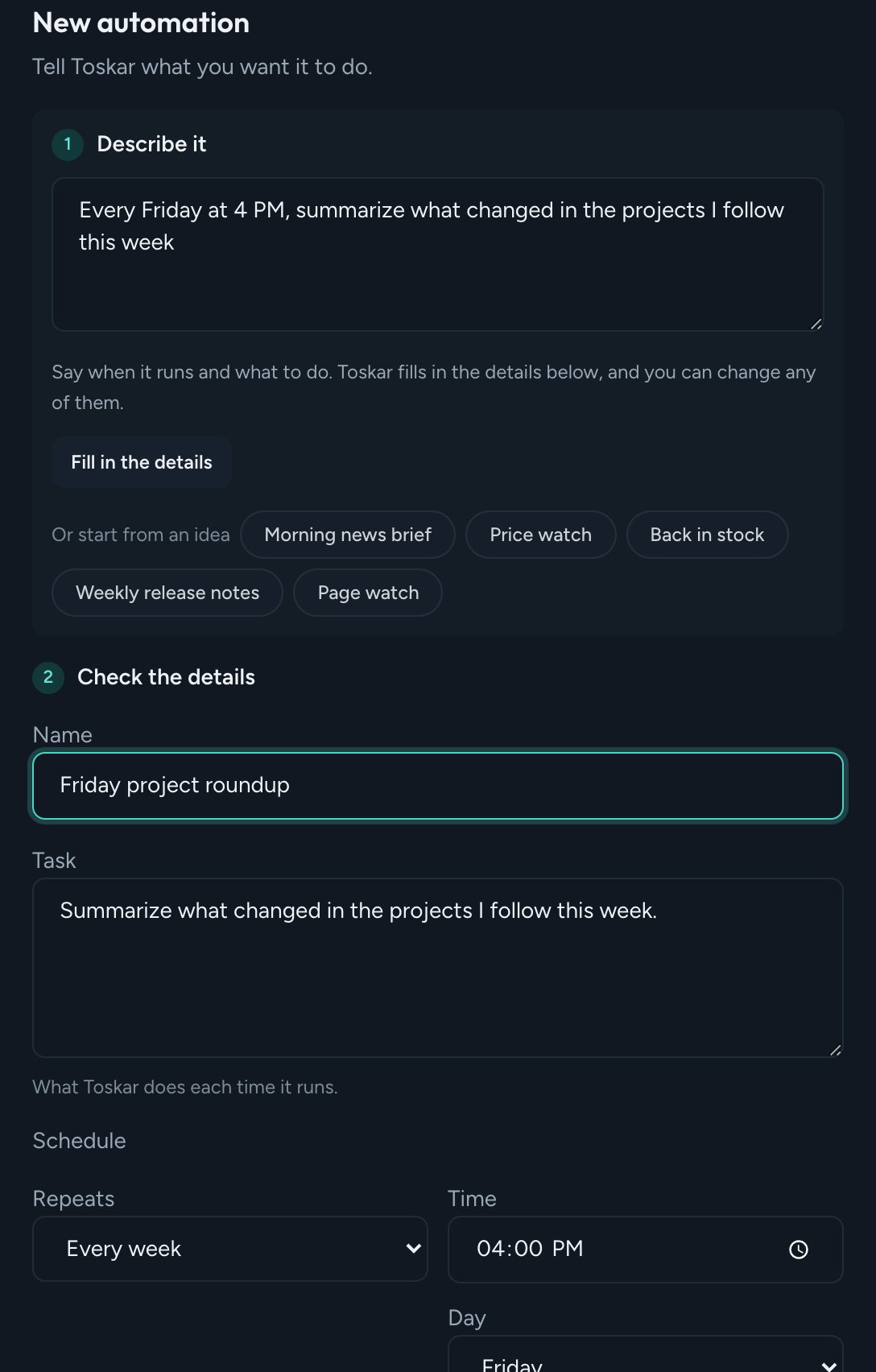
Choose New automation, or Use this on one of the ideas. Then write what you want in one sentence, the way you'd say it to a person:
Every Friday at 4 PM, summarize what changed in the projects I follow this week
Choose Fill in the details. Toskar reads your sentence and fills in the name, the task, and the schedule. Here it picked Every week, Friday, 4:00 PM:
Sentences like these work:
- Every morning at 8:00 AM, check this product and tell me if the price is below $500
- Every six hours, tell me only when this item is back in stock
- Every Friday, with the time defaulting to 8:00 AM when you don't give one
- Once tomorrow at 9:00 AM, for a one-time task
You can write in English or in the app's language, with times like 18:30 and prices in your own currency, like 500 € or 5万円. If a task is about a specific product or page, put its link in the sentence.
Step 2: Choose when you hear about it
Notify me decides when a result reaches you:
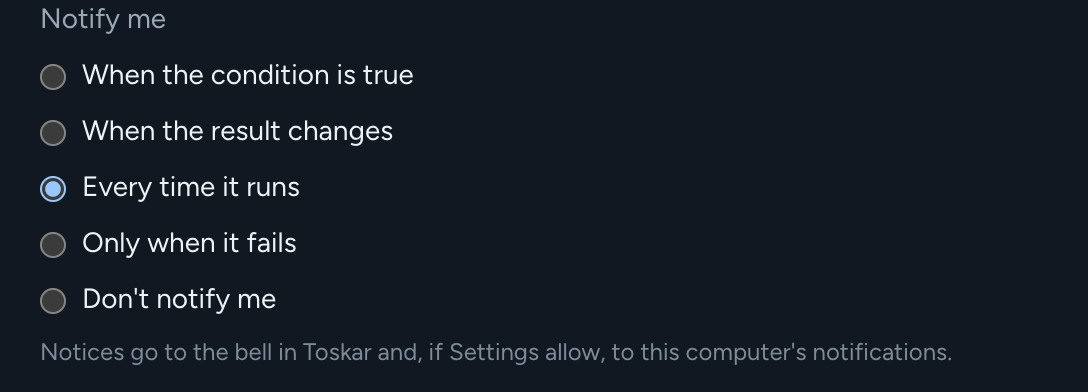
- When the condition is true: for a price below or above an amount, an item coming back in stock, or a result that's significant. This is what makes a price watch quiet until it matters.
- When the result changes: the first run sets a baseline, and you hear only when a later result is different. Good for watching a page.
- Every time it runs: good for a daily brief or a weekly summary.
- Only when it fails: for a task you want to run silently.
- Don't notify me: the result is just kept in its history.
Notices go to the bell in Toskar and to your computer's notifications. In Settings → Email, push, and webhooks you can also send them to your own email server, to your phone through ntfy, or to a webhook. Quiet hours hold them overnight.
Step 3: Approve its tools, check the summary, and test it
Nobody will be around to answer questions while an automation runs, so you approve its tools up front. Tools that change things on your computer are listed separately, so you don't approve one by accident. If a run reaches a tool you didn't approve, it skips it, finishes, and sends you a notification naming the tool.
A task that reads the web, like a price or news check, needs Web Search or Open Web Page, and Toskar's internet tools turned on.
The Summary says in plain words when it runs, what it does, and when you'll hear about it:
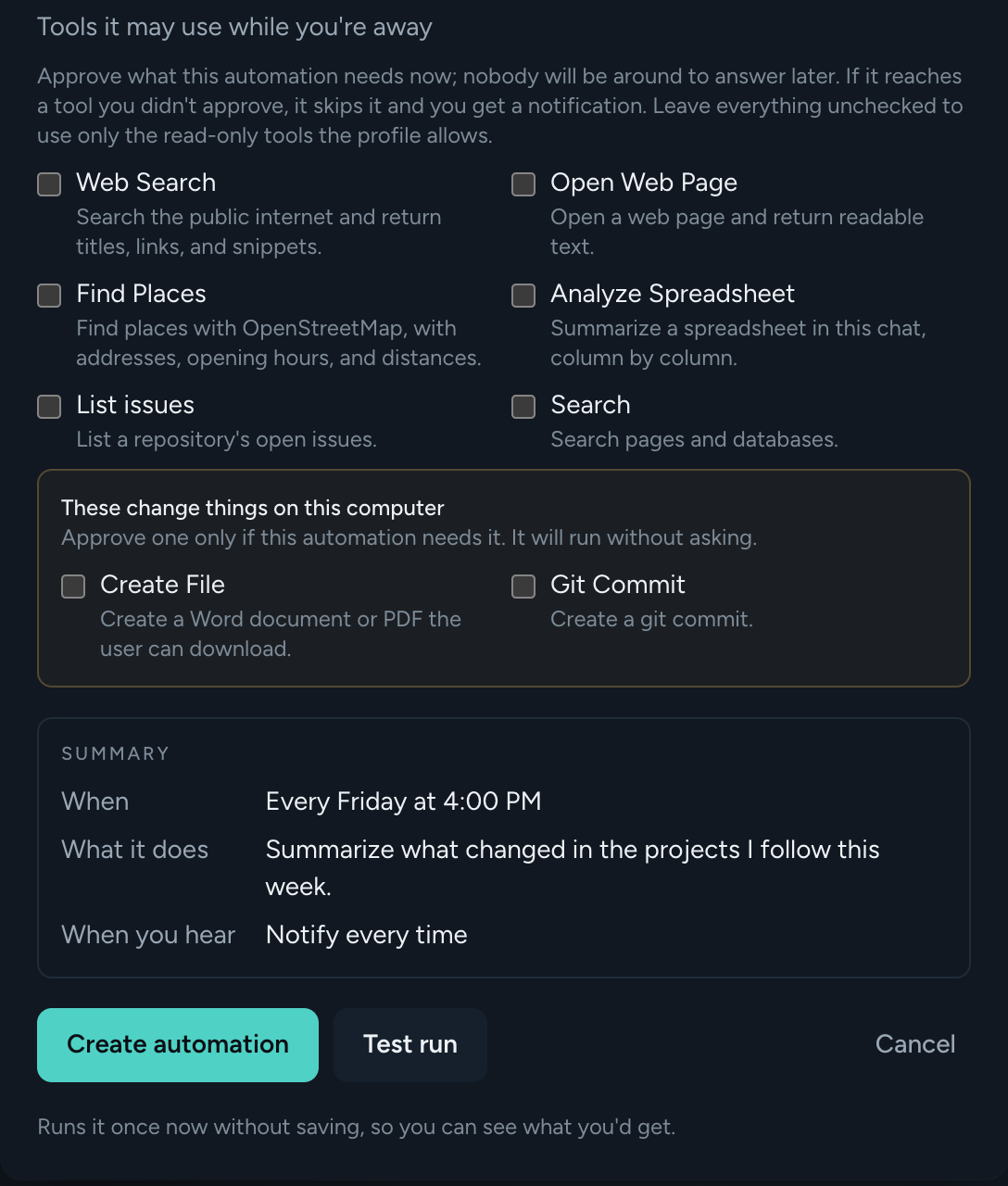
Choose Test run to try it once without saving it, so you can see what you'd get. When it looks right, choose Create automation.
Under Advanced you can choose the profile, the model, the language of the results, and the time zone. Leave the model on Auto, and Toskar picks a model for each run.
Step 4: Watch it work
Your automations are listed with their schedule, their latest result, and their next run. Select one to see its history:
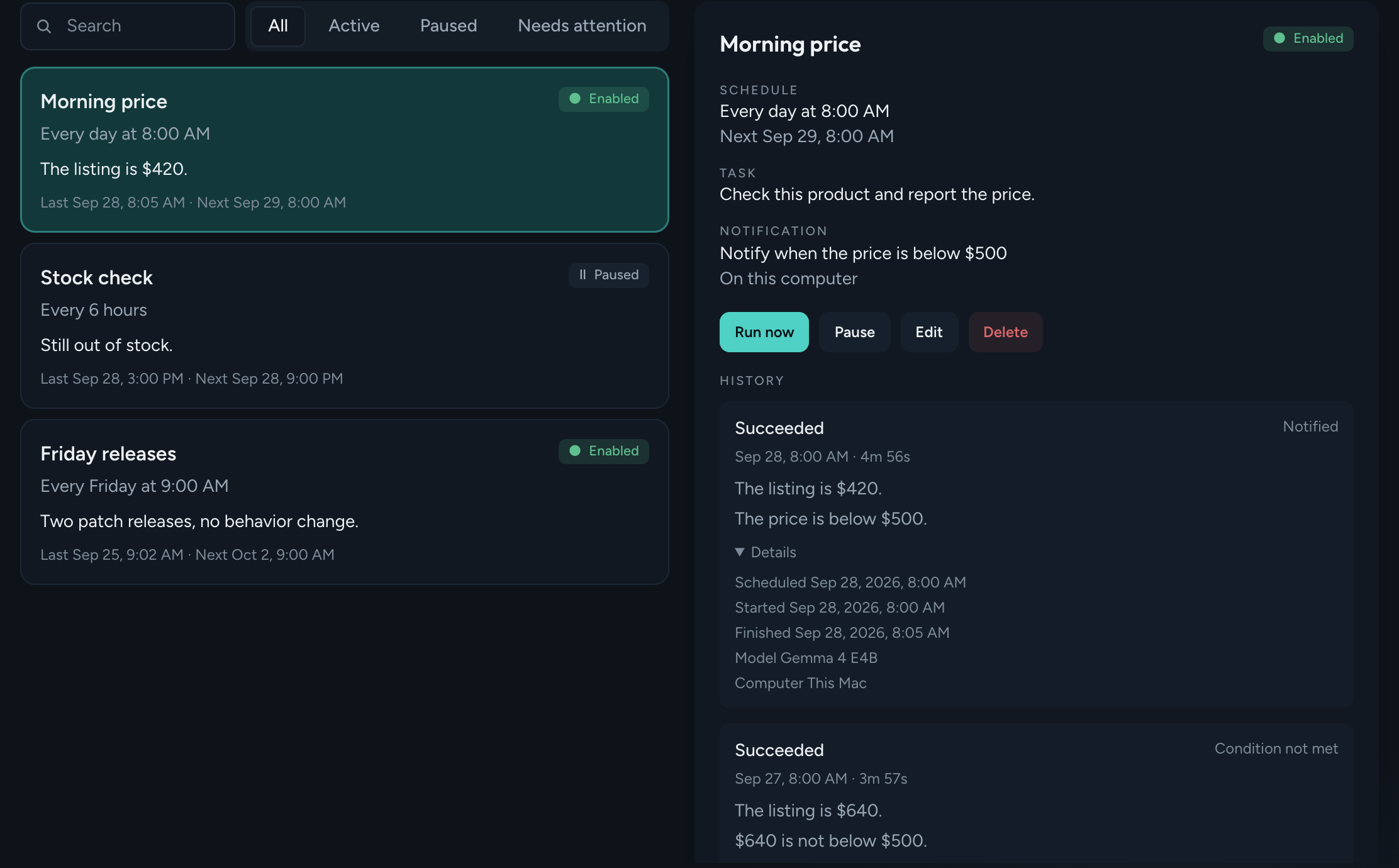
Each run shows its result and whether it notified you, and why not when it didn't. Details shows when it ran, how long it took, and which model and computer did the work. From here:
- Run now runs it immediately and keeps the next scheduled run.
- Pause and Resume stop and restart the schedule.
- Edit changes the task, and Delete removes it and its history.
It's built to keep going
- It retries hiccups. A timeout or a dropped connection is retried up to three times, after one and then five minutes. You're told if it still fails.
- It doesn't replay missed runs. If your computer was off, a missed daily or weekly run happens once when Toskar starts again, not once for every missed day.
- It doesn't get in your way. An automation waits while you're chatting, and for 20 seconds after, so it doesn't load a model between your messages.
- It doesn't keep failing. One that runs out of memory twice in a row pauses itself and tells you why.
With paired computers, automations run like chat does, on a computer that has the model. That can be the big desktop down the hall.
If you use Toskar Desktop, it stops Toskar when you quit the app, unless Settings keeps Toskar running in the background. Turn that on if your automations should run while the app is closed.
From the command line
Everything above works from toskarctl too:
toskarctl automations list
toskarctl automations run AUTOMATION_ID
toskarctl automations pause AUTOMATION_ID
Ideas to start with
- Morning brief: a short summary of the day's news in a field you follow, every morning, every time.
- Price watch: a product link and a target price, every morning, only when it's below your number.
- Back in stock: every six hours, only when it can be bought.
- Weekly release notes: what changed in the software you use, every Friday.
- Page watch: a page you care about, every evening, only when it changes.
New to Toskar? Install it, add a model, and open Automations.
Keep reading
- Use Toskar from your phone, laptop, and other appsRun Toskar on the computer with the most memory, then use it from every device on your home or office network. Four steps, about five minutes.October 5, 2026 · 3 min read
- What can my computer run? A plain guide to local AI and memoryMemory decides which AI models your computer can run. How much each model size needs, what fits in 8, 16, 32, and 64 GB, and Mac vs. PC.October 5, 2026 · 4 min read
- Yggdrasil is now ToskarThe private AI that runs on your own computers has a new name. Here's why, and why nothing you've set up needs to change.October 5, 2026 · 2 min read