
Documentation / 1.11.2
Schedule an automation
An automation is a prompt that the daemon runs on a schedule. Price checks, stock checks, release summaries, and one-time research are the same kind of task: a name, a profile, a schedule, a prompt, and a rule for when to notify you. Open Automations in the sidebar. With none yet, the page explains the three parts of an automation (when it runs, what Toskar does, and when you hear about it) and offers ideas to start from: a morning news brief, a price watch, a back-in-stock check, weekly release notes, and a page watch. With some, How it works shows the same. The list shows whether each task is enabled or paused, the schedule, the latest status and result, and the next run. The daemon keeps that schedule. Closing the web page does not stop it. The desktop app stops the daemon when you quit unless Settings keeps Toskar running in the background.
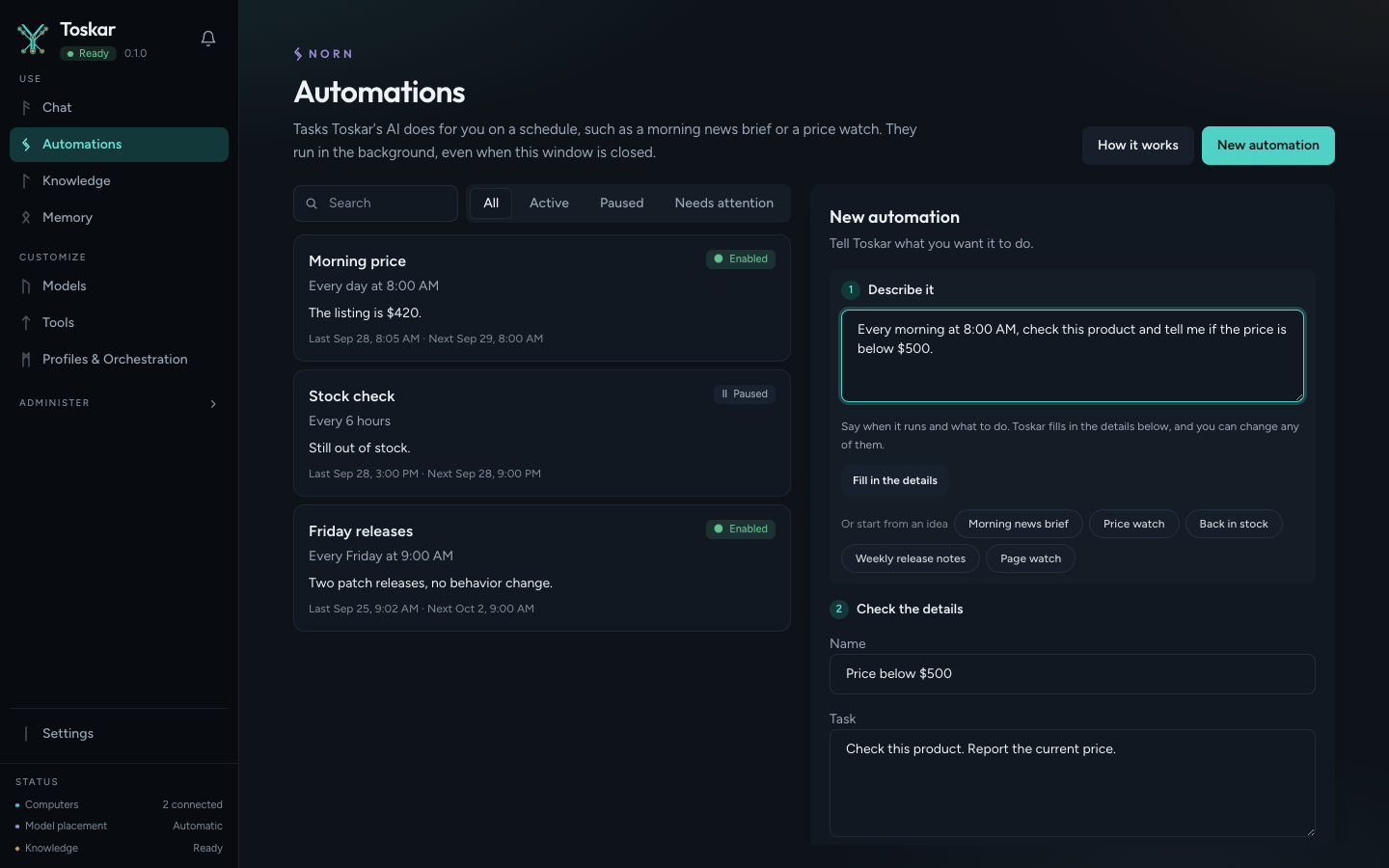
Create a task by describing it in ordinary language, or by choosing an idea, then choose Fill in the details. Toskar fills the name, task, schedule, and notification from that description. These descriptions work: every morning at 8:00 AM with a price below or above an amount; every six hours, and notify only when an item is back in stock; every Friday, with the time defaulting to 8:00 AM when you do not name one; and once tomorrow at 9:00 AM. Write the description in English or in the App language, with times such as 18:30 and prices in your currency, such as 500 € or 5万円. A price check asks for the price in that currency, and you can change the currency next to the amount. The task stays in ordinary language. Toskar uses the price, availability, or significance in the result to decide whether to notify you. Adjust any field before you save. The Summary above Create automation says, in plain words, when it runs, what it does, and when you hear about it. The profile, model, time zone, and tools stay under Advanced. Model Auto picks a model for each run. Save stays disabled until an installed model is available. With no tools selected, a run can use the read-only tools the profile allows without asking. Tools you select are approved when you save, including tools that change things, which the form lists apart. A run that reaches a tool you did not approve skips it, finishes, and sends an approval notification naming the tool, instead of waiting for a closed window. Automations use memories and connected knowledge the same way chat does.
Notifications are separate from the run. Every time sends a notice after every success. On change stores the first success as a baseline and notifies only when a later result differs. A condition notifies when the price is below or above the amount you set, when an item becomes available, or when the result is significant. History says why a notice was or was not sent, such as a price that was not below the amount. Only when it fails notifies only when a run fails. Don't notify me stores the result. Notices appear on this computer. Turning off task-finish notifications in Settings turns every automation notice off. Failures are recorded without using those success rules. A timeout or a dropped connection retries the same occurrence up to three times, after one minute and then five minutes. A model that cannot start, an out-of-memory failure, a tool failure, or any other error stays failed. You are notified when those retries are used up or the next occurrence fails too.
Run now starts one occurrence immediately and leaves a paused task paused. If the scheduled time is already due, that occurrence is the one that runs. Otherwise the daemon runs a new occurrence at the current time and still keeps the next scheduled slot, such as tomorrow morning. Pause and Resume turn the task off and on and recompute the next time. Edit changes the stored task. Delete removes the task and its history. History lists each occurrence newest first, with the scheduled time, start, finish, status, result, whether a notice was sent, the model and computer used, and the error when one exists. After a restart, a missed daily or weekly slot runs once for the latest missed time rather than replaying every skipped day. A finished one-time task does not run again.
toskarctl talks to the local daemon for the same actions. The address is http://127.0.0.1:7331 unless TOSKAR_URL is set. A daemon that is not limited to this computer needs TOSKAR_API_KEY.
An automation waits while you chat, and for 20 seconds after, so it does not load a model between your messages. An automation that runs out of memory twice in a row is paused, and its notification says why.
- Open Automations and choose New automation, or choose an idea.
- Describe when it should run and what it should check. Choose Fill in the details, then read the task, schedule, notification, and Summary. Change the time, day, or threshold if the guess is not the one you want.
- Choose Test run to try it once without saving it. Create automation stores it.
- The list shows the next run in the task’s time zone.
- Use Run now to try it, then open History for the result. Pause stops later scheduled runs until you resume.
toskarctl automations create --name "Morning price" --prompt "Check the price" \
  --profile general-assistant --model MODEL_ID --schedule daily --at 08:00 --zone America/Los_Angeles

yggctl automations list
yggctl automations run AUTOMATION_ID
yggctl automations pause AUTOMATION_ID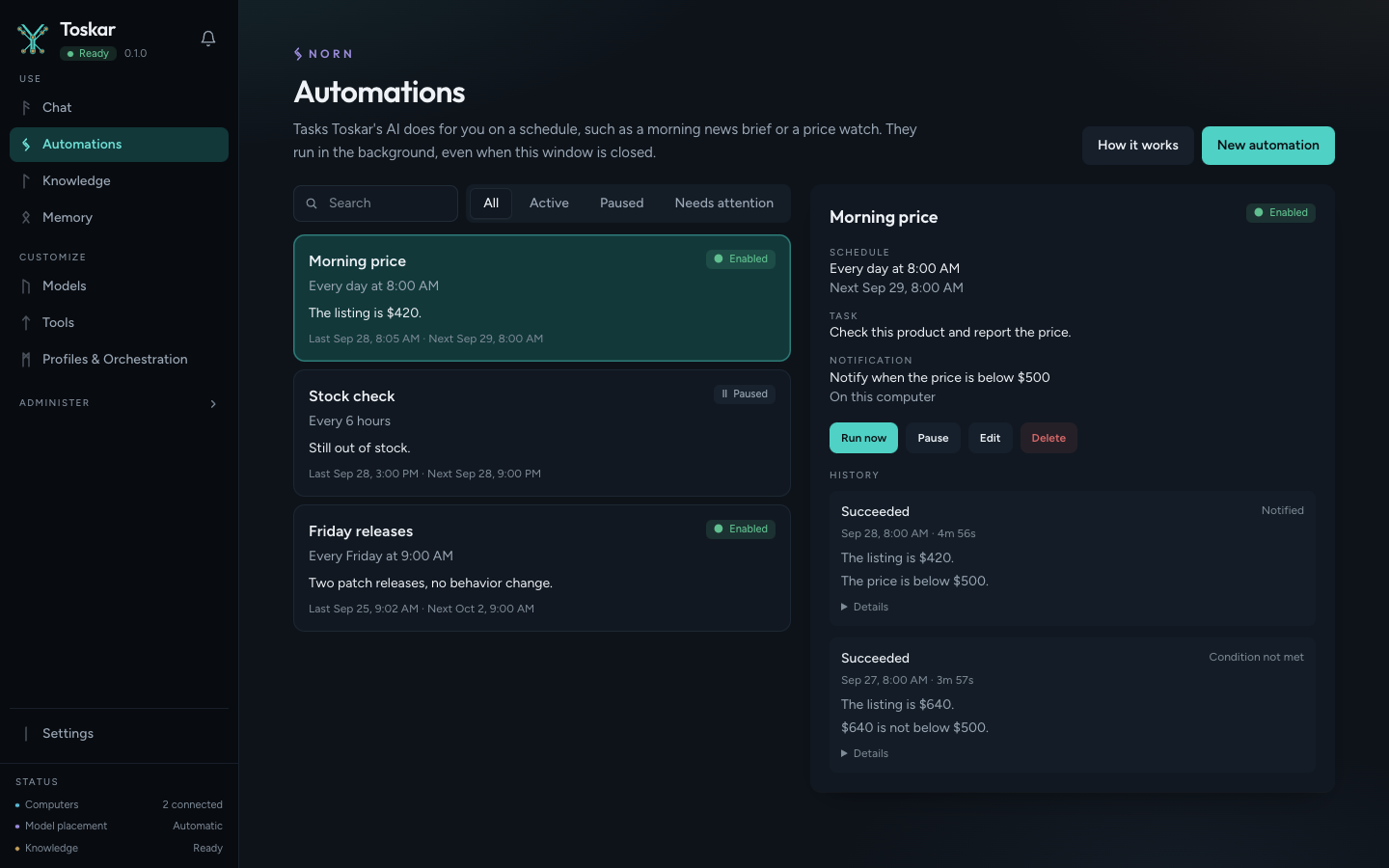
These pages describe Toskar 1.11.2. Download 1.11.2 and its release notes ↗ · Need help? Report a bug or request a feature ↗